
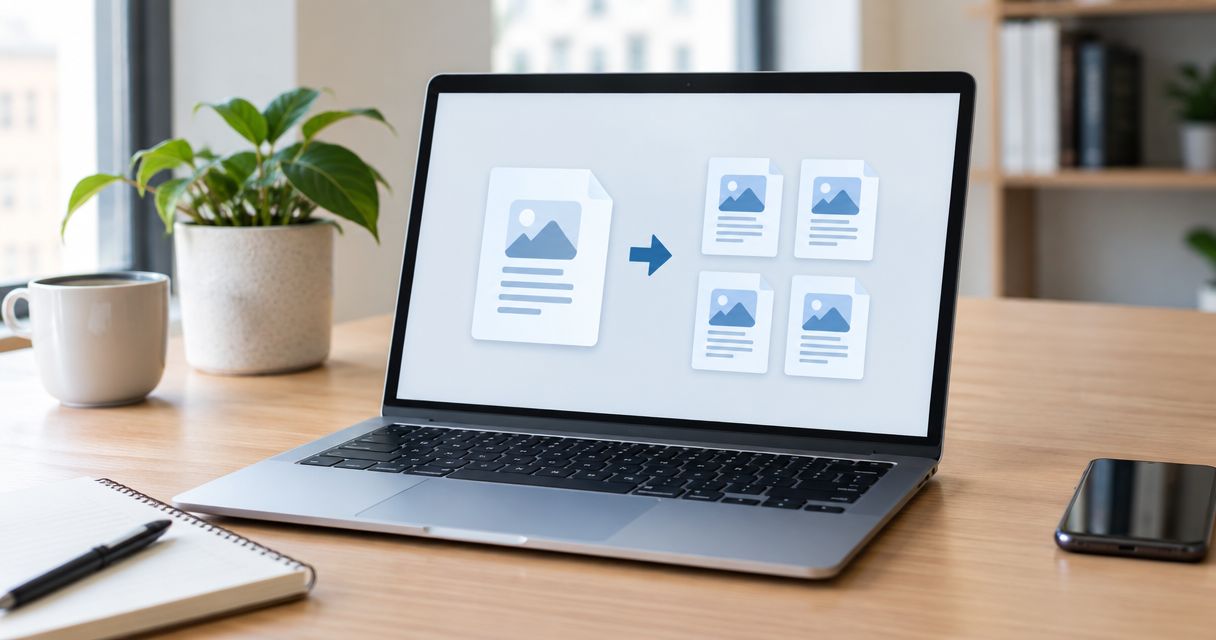
Yes—you can split a large PDF into separate files without installing a dedicated PDF editor by printing selected page ranges to a PDF file in a compatible browser or using an existing document viewer. This works for ordinary page extraction, but printing can remove interactive features and does not preserve a digital signature's verification.
- To split large PDF into separate files, save selected page ranges as new PDFs using a compatible print dialog.
- Browser printing suits simple documents; check forms, bookmarks, and signatures before choosing it.
- Use an online PDF splitter only when its upload rules and document-handling terms fit your requirements.
- Zendocs serves online PDF editing and document management needs; confirm splitting support before choosing it for extraction.
Why this matters: A document that looks correct after splitting can still lose working fields, links, or signature information. For your 2026 workflow, decide whether you need readable pages or files that retain the original document's functionality. If the real problem is an attachment limit rather than unwanted pages, start with how to shrink a PDF without losing quality.
Can you split a large PDF without special software?
Yes. Use a compatible browser's print dialog to save a selected page range as a new PDF, then repeat for each separate file. You do not need a dedicated editor when the document allows printing and the output only needs to preserve readable page content.
The distinction is between creating a printable copy and extracting the original PDF pages. Printing produces a new document from the printable content; a page-extraction tool works with the PDF's pages directly. Neither approach removes the need to inspect the result.
Split a PDF using your browser's print dialog
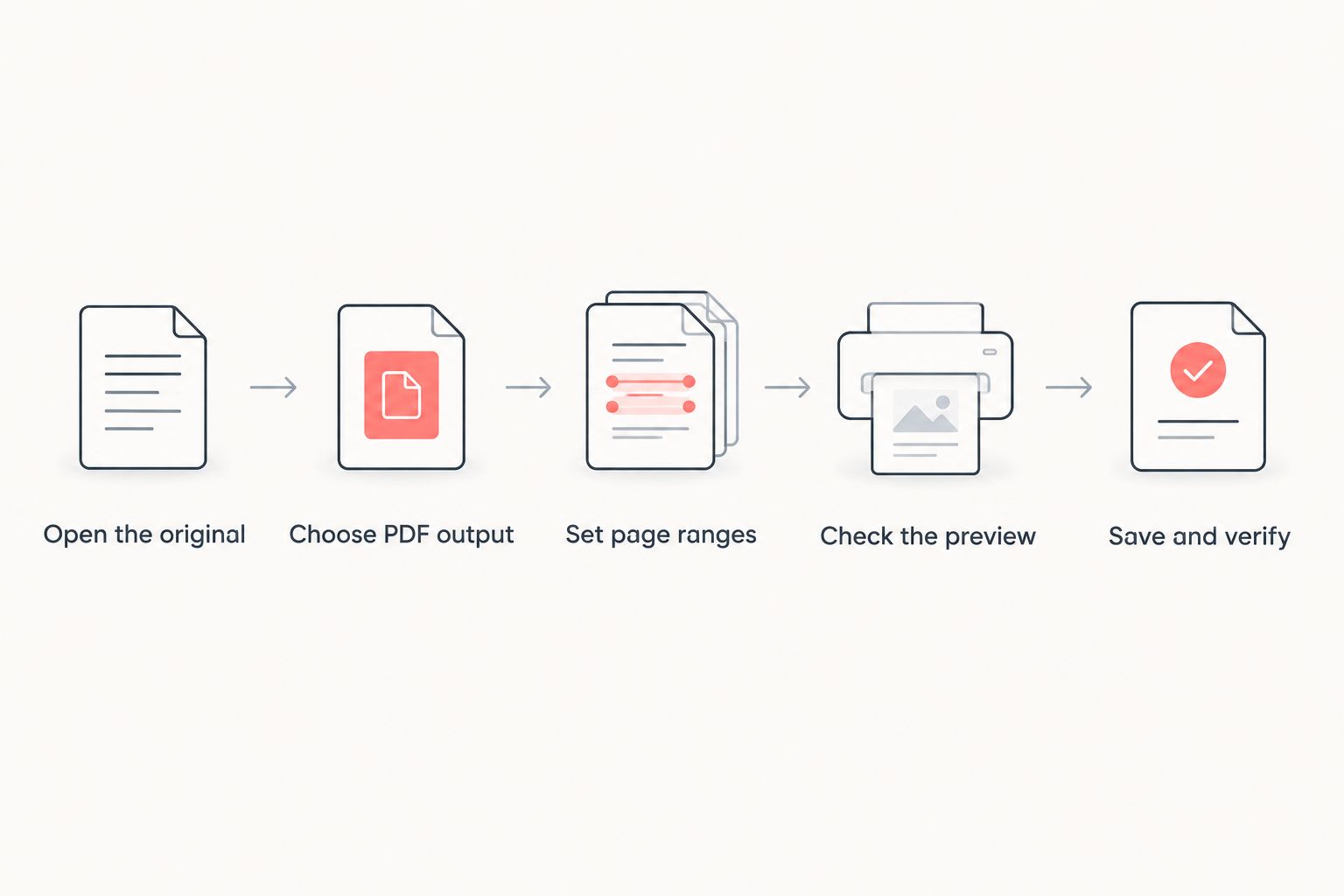
Follow this sequence on a desktop computer. Menu wording varies by browser and operating system, so use the available PDF output destination rather than assuming every device shows identical controls.
- Open the original. Open your PDF in a compatible browser and confirm that all pages render. Keep the source file unchanged so you can restart without losing content.
- Choose PDF output. Open Print and select Save as PDF or an installed PDF printer. Do not leave a physical printer selected.
- Set page ranges. Select the custom pages setting and enter the pages for the first output. Use the viewer's page positions, not a page number printed inside a scanned document.
- Check the preview. Confirm the first page, last page, orientation, paper size, and margins. Look for cropped edges or unexpected blank pages before saving.
- Save and verify. Give the output a descriptive filename, open it, and check its contents. Repeat the process with the next range until every required section has its own file.
For an illustrative 12-page PDF, pages 1–4, 5–8, and 9–12 produce 3 separate files containing 4 pages each. Those are example ranges, not a recommended chunk size: split at the boundaries your recipient needs.
Which splitting method should you use?
For a 2026 document workflow, choose by the features you must retain and whether uploading is allowed—not simply by which method has the shortest instructions. A browser print dialog is convenient, but convenience does not make its output equivalent to the original PDF.
| Method | Best for | Main advantage | Main limitation |
|---|---|---|---|
| Browser print to PDF | Simple, readable page copies | Uses a compatible browser and PDF output destination | Interactive features and signature verification are not preserved reliably |
| Preview on Mac | Local extraction with a built-in viewer | Lets you work with page thumbnails without uploading | Requires a Mac and careful selection of the intended pages |
| Online PDF splitter | Browser-based page extraction | A dedicated splitting interface can simplify selecting outputs | Upload rules, file limits, and feature preservation require checking |
Browser printing: best for simple page copies
Choose browser printing when your goal is to send selected pages for reading. It is a practical fit for reference material and ordinary documents where clickable navigation, fillable fields, and signature verification are not required in the separated copies.
The drawback is reconstruction. Print output can flatten form appearances and omit document features that are not part of the printed page. Do not use appearance alone as proof that the new PDF retains the original's functions.
Preview on Mac: best for local page extraction
If you already use a Mac, open the PDF in Preview and display its thumbnails. Select the pages you want and drag the selected thumbnails to the desktop to create a separate PDF, then open the result and verify the page order.
Preview avoids uploading the document to an online service. Its limitation is platform access, and selecting thumbnails still requires care when sections contain blank pages, attachments, or similar-looking sheets. Keep the original open as your reference rather than deleting pages from it.
Online PDF splitting: best for a dedicated extraction interface
An online splitter is appropriate when you want a browser-based page-selection workflow and have permission to upload the file. Look for an explicit split or extract-pages function; PDF conversion, compression, and editing are different capabilities.
Zendocs provides subscription-based online PDF editing, conversion, signing, and document management. Zendocs is best suited to individuals and businesses seeking online document processing. For this specific task, confirm that the current interface supports the extraction you need; broad PDF editing capabilities do not establish a particular splitting feature.
In a 2026 evaluation, check the service's actual file-handling terms and current controls before uploading. The benefit of a web-based workflow must be weighed against your document's confidentiality requirements and the features the exported file must retain.
Why splitting a large PDF varies
The same procedure does not suit every PDF. These document properties determine whether a simple print-based split is enough or whether you need direct page extraction:
- Page structure: A report with clear chapter boundaries is straightforward to divide. A document with overlapping appendices or shared reference pages needs a page map before extraction.
- Scanned content: Image-heavy scans carry their image data into the output. Splitting reduces the pages in each file but does not automatically optimize the images on those pages.
- Interactive features: Fillable fields, bookmarks, attachments, and links need separate inspection. A readable print copy is not a reliable substitute for an interactive original.
- Security restrictions: Password protection or printing restrictions can prevent your chosen method from working. Request an authorized copy rather than trying to bypass the restriction.
- Digital signatures: A printed copy does not retain the original cryptographic signature verification. Keep the signed original intact and identify extracted files as copies when appropriate.
- Upload requirements: Browser-based does not necessarily mean local processing. Confirm whether a service uploads the document and whether your organization permits that handling.
For confidential files in 2026, make permission to upload a decision made before tool selection. A convenient interface does not replace your organization's document-handling rules.
Will splitting a PDF make each file smaller?
Splitting a PDF usually makes each output smaller than the complete document because each contains fewer pages, but it does not guarantee a specific file size. A section containing detailed scans can remain large even when it contains relatively few pages.
Splitting changes page grouping; compression changes how content is stored. If a recipient needs the entire document in a single attachment, splitting solves the wrong problem unless the recipient accepts multiple files.
Check the saved file's size against the destination's stated limit. Do not assume equal page counts produce equal-sized outputs: an image-heavy appendix and a text-only chapter contain different amounts of data.
Can you split a PDF without uploading it?
You can split a PDF without uploading it by using a local PDF file with a compatible browser print dialog or a built-in viewer such as Preview. Start from the file stored on your device rather than submitting it to an upload page.
A website that offers PDF processing is a different workflow from opening a local file in a browser. Read its handling information before assuming that processing stays on your device, and follow any organizational restrictions on external services.
Will splitting preserve forms and digital signatures?
Splitting does not guarantee that forms and digital signatures remain functional. Print-to-PDF output is a new document, so treat it as a reading copy rather than a continuation of the original signed or interactive file.
For an interactive form, test whether fields remain editable and whether entered values appear correctly. For a digitally signed document, retain the complete original for verification instead of relying on an extracted section as the signed record.
Check the files before you share them
In 2026, the final check should still happen in the saved file—not only in the splitter's preview. Open each output independently so you see what the recipient will receive.
Confirm page coverage and sequence
Compare the beginning and end of each output with the original document. Verify that no section is missing its opening page, continuation sheet, or supporting attachment.
If your sections must cover the complete original without repetition, compare adjacent boundaries. The next file should begin immediately after the previous file ends, unless you intentionally repeat a cover sheet or shared instructions.
Check numbering, layout, and search
Distinguish the viewer's page position from numbering printed on the page. Front matter, cover sheets, and scanned inserts can make those numbers disagree, which is why selecting by visible page content matters.
Inspect small text, tables, landscape pages, and annotations. If searchable text matters, try selecting or searching for a known phrase in the output; readable scanned text is not automatically machine-searchable.
Name files for the recipient
Use filenames that identify the document and section rather than relying on a sequence alone. A recipient should understand the contents without opening every attachment.
Keep the complete original in a separate, clearly identified location. Splitting is an output task, not a reason to replace the source document with an incomplete copy.
FAQ
What's the easiest way to split a large PDF into separate files?
For simple reading copies, use a compatible browser's print dialog, select a page range, and save it as a PDF. Repeat for each section and check every saved file.
Can I split a PDF without downloading a dedicated editor?
Yes, a compatible browser with PDF output can save selected pages as a new file. On a Mac, Preview also supports creating a PDF from selected page thumbnails.
Can I save every PDF page as its own file?
Yes, you can save each page separately by repeating the print-to-PDF process for individual pages. For repeated extraction, check whether a dedicated splitter offers an explicit individual-page output option.
Will splitting a scanned PDF make the text editable?
No, splitting a scanned PDF does not turn its images into editable text. Text recognition and document conversion are separate tasks from selecting pages.
Can I split a password-protected PDF?
You need the necessary authorization and access permissions to split a protected PDF. If restrictions block printing or extraction, request an authorized copy from the document owner.
Does Zendocs support this kind of document workflow?
Zendocs provides online PDF editing, conversion, signing, and document management. Confirm the current split or extract-pages controls before choosing it specifically for separating a PDF.
Why is my split PDF still too large to attach?
A split PDF can remain large when its selected pages contain detailed images or scans. Check the recipient's attachment limit and consider compression if the content must remain together.
One last thing
An intentionally blank page can still belong in the document. Before removing it, check whether it separates sections, preserves facing-page layout, or carries meaning for the recipient. The goal is not the fewest pages; it is a complete, usable section that makes sense without the rest of the file.


