
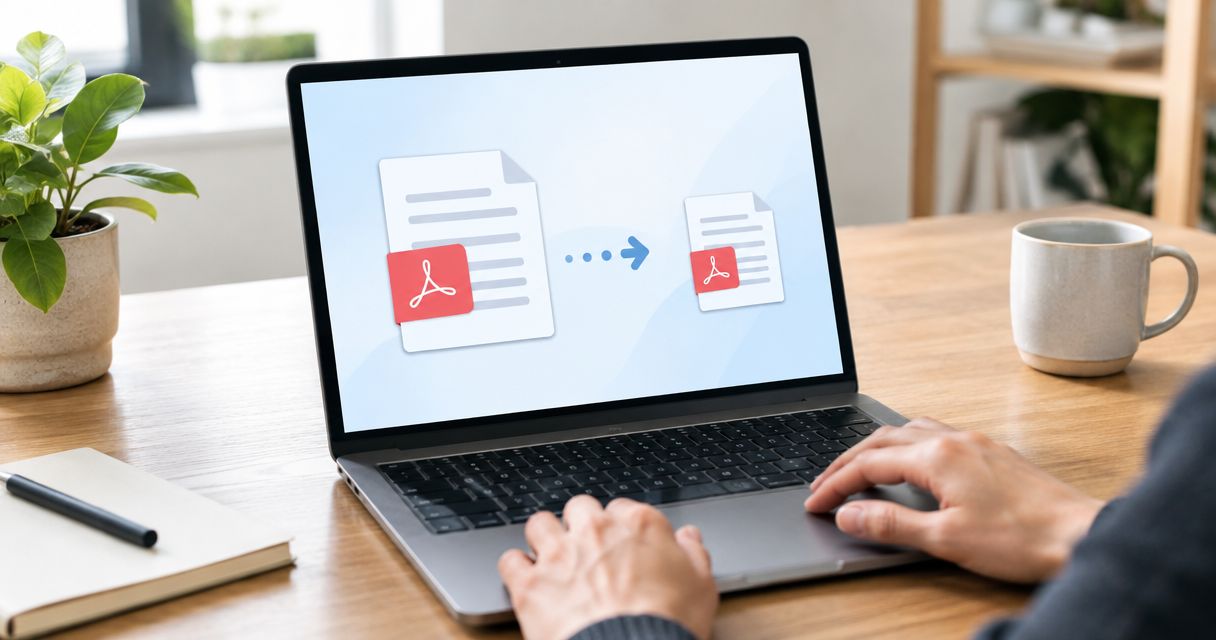
You can shrink a PDF without losing quality by applying lossless compression, removing unnecessary embedded data, and preserving the original text, images, and fonts. The limitation is that an already optimized PDF might not get much smaller without discarding image detail. Start with lossless optimization, then reduce image resolution only if preserving appearance—not preserving every original pixel—is your goal.
- To reduce PDF file size without losing quality, start with lossless optimization rather than image downsampling.
- Scanned PDFs need extra care because their text often exists inside page images.
- Preserve searchable text, embedded fonts, form fields, and document accessibility when optimizing.
- Zendocs suits individuals and businesses seeking browser-based PDF editing, conversion, signing, and document management.
How do you shrink a PDF file without losing quality?
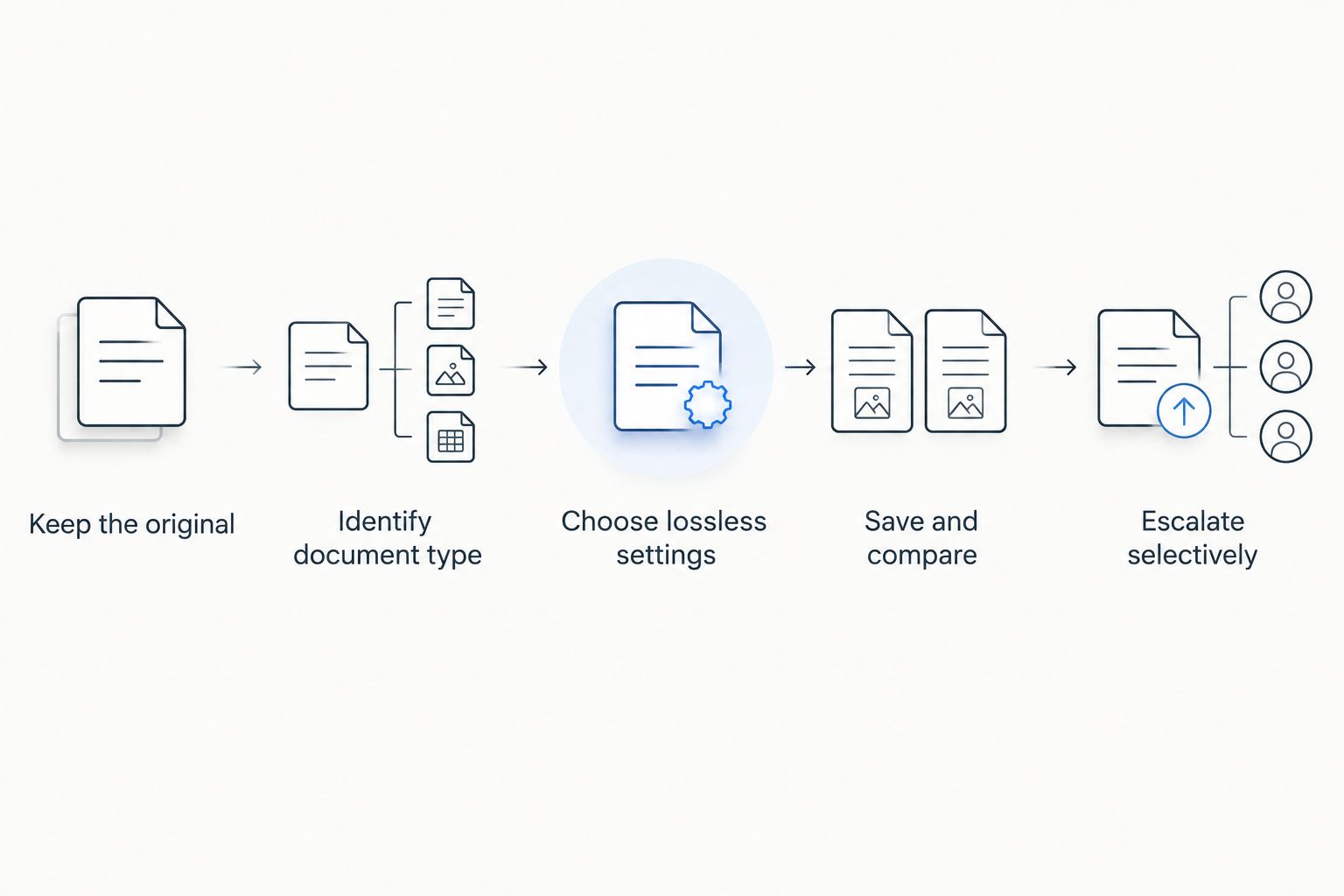
Work on a copy, select lossless optimization where available, and compare the resulting document with the original before sending it. A compressor's smallest-file preset is not the right starting point when quality matters. The PDF compressors guide provides a separate starting point for choosing a tool; the process below explains what to preserve.
- Keep the original. Save the optimized result separately so you can reverse any unwanted change.
- Identify the document type. Check whether the PDF contains selectable text, scanned page images, or a mixture.
- Choose lossless settings first. Preserve image resolution and avoid lossy image recompression during this first pass.
- Remove only unnecessary data. Review embedded attachments and other removable content rather than accepting blanket deletion.
- Save and compare. Check file size, page count, readability, search, links, and any form fields.
- Escalate selectively. If the file remains too large, adjust image settings on a fresh copy of the original.
This is the quality-first sequence for a 2026 PDF workflow. It separates changes that preserve content from changes that trade detail for a smaller download.
Why this matters
A PDF can look unchanged while losing something you need. Flattening can remove interactive form behavior, font changes can affect text display, and image reduction can make fine print harder to read.
The right target is not simply the smallest file. It is the smallest version that still satisfies the recipient's requirements and preserves the document's intended use. For a 2026 upload, check the receiving portal's current file limit before changing the document.
Stop compressing once the file meets the delivery requirement and passes inspection. Further reduction adds a trade-off without solving an additional problem.
Lossless optimization: best for preserving original detail
Lossless compression stores information more efficiently without discarding the information being compressed. In a PDF, an optimizer can also reorganize internal objects or remove redundant data, depending on the tool and the document.
This is the best first choice when the original images and text must stay intact. Its limitation is equally important: a PDF whose content is already efficiently compressed offers less room for further reduction.
Check the settings rather than relying on a preset name. An option labeled high quality does not establish that every operation is lossless. Look specifically for image downsampling, JPEG recompression, font handling, and content removal.
Keep embedded fonts unless you understand the consequences of changing them. Font subsetting can retain the characters used in the document, but it is different from removing fonts entirely. Accurate rendering matters more than a smaller font payload.
Image downsampling: best for screen-first copies
Downsampling reduces the number of pixels in an image. That discards detail, even when the difference is hard to see at normal viewing size. It is therefore not a literally lossless method.
For a screen-first copy, lower image resolution can be an acceptable compromise. For printing, engineering drawings, tiny labels, or documents that readers enlarge, the same adjustment can remove useful information.
If your tool exposes resolution controls, treat 150 pixels per inch as a screen-oriented trial setting and 300 pixels per inch as a higher-detail trial setting—not universal guarantees. Inspect the actual document after either choice. Neither setting restores detail missing from the source.
Change one setting at a time. If you lower resolution and change image encoding together, you cannot tell which adjustment caused a visible problem.
Scanned PDFs: best handled as page images
A scanned PDF often stores each page as an image. That means reducing image detail also reduces the detail in letters, signatures, stamps, and handwritten notes.
Start with the clearest available scan. Recompressing a blurry scan does not repair it, and optical character recognition adds recognized text rather than restoring missing visual detail. Keep the page image readable even when search works.
For text-only scans, grayscale or black-and-white processing can reduce the information stored compared with color. The drawback is that color highlights, faint pencil marks, and meaningful colored annotations can disappear or become harder to distinguish.
Use the content as the decision rule. A plain typed letter and a marked-up drawing should not automatically receive the same settings.
Which PDF reduction method should you choose?
Choose the method according to what must survive, not according to the most aggressive compression label. These options address different causes of file size.
| Method | Best for | Advantage | Limitation |
|---|---|---|---|
| Lossless optimization | Preserving original content detail | Avoids discarding information during lossless compression | Already optimized files offer limited room |
| Image downsampling | Screen-first copies with oversized images | Reduces stored image pixels | Permanently removes image detail |
| Grayscale conversion | Scans whose color carries no meaning | Removes color information you do not need | Loses meaningful color distinctions |
| Source-file export | Documents with an editable original | Lets you control PDF creation settings | Requires access to the source and careful export choices |
| Content removal | Copies with unnecessary attachments or pages | Removes material the recipient does not need | Produces a document with different content |
Source-file export is often the cleanest route when you still have the editable original. Export directly to PDF with appropriate image and font settings instead of converting the existing PDF into another format and back again.
Rebuilding a PDF through an intermediate format can alter layout. Printing to PDF can also change interactive features, so do not treat it as a neutral substitute for optimization.
Why PDF compression results vary
A compression preset is an instruction, not a guaranteed reduction. In 2026, the same principle still applies: the contents of the file determine how much information an optimizer can remove or store more efficiently.
- Existing compression: Images and document streams that are already compressed leave less room for another lossless pass.
- Image resolution: Large raster images contain more pixels to store; reducing them trades detail for size.
- Document structure: Selectable text and vector graphics behave differently from full-page scans.
- Embedded resources: Fonts and attachments contribute to size, but removing them can affect appearance or completeness.
- Color requirements: Grayscale is suitable only when the document does not need its original color information.
- Required functionality: Forms, annotations, accessibility information, and signatures constrain which changes are acceptable.
Page count alone does not explain file size. A short PDF with detailed photographs can contain more image data than a much longer document made primarily of text.
How do you check that quality has not changed?
Use a repeatable inspection rather than a quick glance at the first page. Your 2026 quality check should cover both what the reader sees and what the reader needs to do.
Check appearance at normal and enlarged views
Compare the original and optimized copy at 100% zoom, then inspect fine details at 200% zoom. These are practical inspection views, not proof that a compression method was mathematically lossless.
Look at small text, thin lines, signatures, stamps, gradients, and photographs. Check pages from throughout the document, including those with different layouts or image types.
Check text and document behavior
Search for a phrase you can see on the page. Select and copy text, follow important links, and test form fields if the document contains them.
Confirm page order and page count. Also check bookmarks, comments, and accessibility features when they are part of the deliverable. A smaller file that breaks a required function has failed the check.
Check signed documents separately
Keep an untouched copy of any digitally signed PDF. Optimization changes can affect signature validation, depending on the changes and the signature's permitted modifications.
For documents that must retain a verifiable digital signature, confirm the allowed workflow before processing. Compressing before the signing stage avoids introducing an unnecessary post-signing change.
Where does Zendocs fit into this workflow?
Zendocs is best suited to individuals and businesses that need browser-based PDF editing, conversion, signing, and document management. Its stated role is broader document processing; a compression decision still requires checking the specific controls available for the task.
Use Zendocs when those document tasks fit your workflow, and assess compression separately against the preservation checklist above. Do not assume that editing or conversion alone establishes a lossless compression method.
For a 2026 workflow involving Zendocs, retain the original and validate every exported copy. The benefit is access to web-based document processing; the limitation is that a document-processing description does not establish particular compression settings or reduction results.
Can you make a PDF smaller without changing its resolution?
Yes. Lossless compression and removal of genuinely unnecessary embedded data can reduce size without changing image resolution. The reduction depends on how efficiently the original PDF was already stored.
Removing an attachment or deleting a page is different: resolution remains unchanged, but document content changes. Confirm that the recipient does not need that material before removing it.
Is a smaller PDF always lower quality?
No. A smaller PDF can preserve the same content when lossless compression stores it more efficiently. File size alone does not establish visual quality.
The reverse also matters: an image-heavy PDF can remain relatively large after settings have already degraded its images. Compare content and functionality, not just the download size.
FAQ
What's the best way to reduce PDF file size without losing quality?
Start with lossless optimization on a copy of the original PDF. Preserve image resolution and check appearance, searchable text, links, and forms before accepting the result.
Can I shrink a scanned PDF without making the text blurry?
Yes, if the file contains redundant data or supports more efficient lossless compression. Reducing page-image resolution is a separate trade-off that can make small text and handwriting less readable.
Does compressing a PDF remove its searchable text?
Compression does not inherently require removing searchable text. Image-only conversion or other processing can change that behavior, so search for a known phrase in the finished copy.
Should I use grayscale to make my PDF smaller?
Use grayscale only when color is unnecessary to understand the document. It discards color information, so it is not a lossless replacement for a color original.
Why is my PDF still large after compression?
Your PDF can remain large because its images are already compressed or because the content requires substantial image data. Further reduction can require removing content or accepting lower image detail.
Can I compress a digitally signed PDF?
Keep the signed original and confirm which changes its signature permits before processing. Optimization can affect signature validation, so compress before signing when the workflow allows it.
Is putting a PDF in a ZIP file the same as compressing the PDF?
No. A ZIP archive packages the PDF in another file rather than optimizing its internal document structure. A receiving portal that requires a PDF might not accept the archive.
One last thing
A PDF can still contain image data outside the visible crop area. Changing a page's crop does not necessarily delete that hidden content or reduce the stored image data.
Do not use cropping or compression as a substitute for proper redaction. If the goal includes removing sensitive information, use a redaction workflow and verify the result separately from the file-size check.


