

FormSwift is a useful starting point for creating documents from templates and completing PDFs. Its template-first approach stops being enough when your main job is processing existing documents across different formats rather than creating another form. The best FormSwift alternative in 2026 is Zendocs for browser-based document conversion, editing, and signing; Adobe Acrobat is the better fit for detailed PDF work.
- Among FormSwift alternatives, Zendocs fits online document conversion, PDF editing, signing, and management.
- Adobe Acrobat fits PDF-focused work, including scanned documents and detailed file preparation.
- Docusign fits signature collection; Google Docs fits collaborative drafting before PDF export.
- Keep FormSwift when its document templates match your task and you do not need a different workflow.
Why this matters
A document template, a PDF editor, and a signature platform solve different problems. Replacing one with another works only when you identify the task that actually slows you down.
Start with your next deliverable. If you need to create a document from a template, evaluate template coverage. If you already have a file, evaluate editing and conversion. If the content is finished but needs approval, evaluate the signing process instead.
For your 2026 shortlist, separate those jobs before comparing products. A long feature list is less useful than a clear answer to this question: can you finish your actual document without moving between unnecessary tools?
FormSwift alternatives at a glance
The table includes FormSwift as the baseline. These are workflow recommendations, not claims that every option replaces every FormSwift function.
| Tool | Best for | Standout capability | How it differs from FormSwift |
|---|---|---|---|
| FormSwift | Starting from document templates | Template-led document creation and PDF completion | The benchmark for template-first work |
| Zendocs | Processing existing documents online | Conversion, editing, signing, and management across PDF and other formats | Focuses on browser-based document processing rather than template selection |
| Adobe Acrobat | Detailed PDF preparation | PDF editing, conversion, and optical character recognition | Centers the workflow on the PDF itself |
| Docusign | Collecting signatures on finished documents | Sending documents through an electronic-signature workflow | Centers the workflow on signers and document completion |
| Google Docs | Collaborative drafting | Shared editing, comments, and suggestions | Starts with an editable document rather than a finished PDF |
Choose by the output you need, not by how similar the product looks to FormSwift. A document you must rewrite calls for a different tool from a document you only need someone to sign.
1. Zendocs: best for online document processing
This web-based subscription tool handles conversion, editing, signing, and management of PDFs and other document formats, including Word, Excel, PowerPoint, and images. It fits individuals and businesses whose work starts with existing files. The central question is whether you need to process documents rather than choose a legal or business template.
Where it shines
- Multiple document formats: The stated scope extends beyond PDFs to office documents and images.
- Connected document tasks: Conversion, editing, signing, and management belong to the same service offering.
- Browser-based use: The web-based model fits an online document-processing workflow.
Where it falls short
- Subscription commitment: A subscription model requires you to assess recurring use, not just an isolated task.
- Web-based workflow: Choose this model only when working through an online service suits your requirements.
- Legal drafting is a separate decision: Document processing does not establish whether a form contains the right legal language for your situation.
Best for: Individuals and businesses that regularly convert, edit, sign, and manage existing documents online.
| Dimension | Zendocs | FormSwift |
|---|---|---|
| Main starting point | Existing documents needing processing | Documents created from templates or PDFs needing completion |
| Document scope | PDF, Word, Excel, PowerPoint, and images | Template-led documents and PDF tasks |
| Main selection criterion | Fit across conversion, editing, signing, and management | Fit between the available template and your document need |
For a 2026 evaluation, test the complete task rather than a single upload. Convert a representative file, make the required edit, finish the signing step, and inspect the final document. Successful upload alone does not establish that the output meets your needs.
Verdict: Buy for recurring online document processing; skip if your only requirement is finding a specific template.
2. Adobe Acrobat: best for detailed PDF work
Adobe Acrobat is the PDF-focused alternative on this shortlist. Its established capabilities include PDF editing, conversion, and optical character recognition, commonly called OCR. That makes it relevant when the file itself needs substantial preparation before you send it elsewhere.
A scanned document is a different problem from a template. OCR helps turn image-based text into searchable or editable text, but you still need to inspect the result. Names, tables, and unusual layouts deserve particular attention.
Where Adobe Acrobat shines
- PDF-centered work: Editing and conversion address the file rather than just its form fields.
- Scanned documents: OCR supports work with PDFs whose pages contain images of text.
- File preparation: Acrobat fits workflows involving PDF organization, review, and final output.
Where Adobe Acrobat falls short
- More interface to learn: A broad PDF workflow involves more decisions than simply completing a template.
- Not a substitute for choosing legal wording: PDF editing does not determine whether a document is appropriate for your transaction.
- Unnecessary depth for simple tasks: If you only need to fill an existing field, evaluate that task before adopting a broader PDF workflow.
Best for: People whose work requires editing, converting, or preparing PDFs, particularly scanned files.
| Dimension | Adobe Acrobat | FormSwift |
|---|---|---|
| Starting point | A PDF requiring file-level work | A template or a PDF requiring completion |
| Primary strength | PDF editing, conversion, and OCR | Template-led document creation |
| Evaluation task | Edit and inspect a representative PDF | Complete and inspect the required document |
For your 2026 comparison, distinguish an editable PDF from a scan. Selecting visible text does not always mean the document has a clean, usable text layer. Inspect the exported file as well as the editor view.
Verdict: Buy for substantial PDF work; hold if your tasks end at basic form completion.
3. Docusign: best for collecting signatures
Docusign is an electronic-signature platform, not a direct replacement for every document-creation task. Its role becomes clear when your document is already written and the remaining job is getting the right people to sign it.
That distinction matters. A signing workflow should be evaluated through the recipient's experience and the completed document, not just the sender's setup screen.
Where Docusign shines
- Signature collection: The workflow centers on sending documents to signers.
- Recipient coordination: It fits documents that need action from people other than the creator.
- Completion tracking: Signing status is central to the task rather than an afterthought.
Where Docusign falls short
- Content still needs preparation: A signature workflow does not resolve unclear or incomplete document wording.
- Not a PDF-editing replacement: Choose a separate editing workflow when the underlying document needs substantial changes.
- Extra process for self-contained tasks: Sending a signature request is a different job from adding information to your own file.
Best for: Finished documents that need signatures from other people.
| Dimension | Docusign | FormSwift |
|---|---|---|
| Starting point | A document ready for signature | A template or PDF to complete |
| Main task | Coordinate signing | Create or complete the document |
| Decision criterion | Recipient workflow and completion | Template suitability and document output |
Verdict: Buy for signature collection; skip as a general document-conversion replacement.
4. Google Docs: best for collaborative drafting
Google Docs fits the stage before the PDF becomes final. Shared editing, comments, and suggestions help people work on wording together; PDF export then creates a document for distribution.
Choose it when the bottleneck is agreement on the text. It is not the same workflow as directly editing an existing PDF.
Where Google Docs shines
- Shared drafting: Contributors can work in the same editable document.
- Review discussions: Comments and suggestions support decisions about wording.
- PDF output: Export provides a route from draft to distributable document.
Where Google Docs falls short
- PDF conversion needs inspection: Importing or recreating a PDF requires you to check layout and content.
- Drafting is not signing: Collaborative editing does not complete an external signature process.
- Template suitability remains your responsibility: An editable document is not proof of legally appropriate wording.
Best for: Documents that need collaborative writing before finalization.
| Dimension | Google Docs | FormSwift |
|---|---|---|
| Main task | Write and revise together | Create or complete a document |
| Working format | Editable shared document | Template-led document or PDF |
| Finishing step | Review, then export | Complete and inspect the output |
Verdict: Buy for collaborative drafting; skip for direct PDF editing or signature collection.
Why people switch from FormSwift
The strongest reason to switch is a mismatch between your task and a template-first workflow. These are concrete selection triggers, not claims about FormSwift customer behavior, service problems, or product changes.
- Existing files dominate your work. You need conversion and editing more often than a new template.
- Scans need processing. Searchable text and usable exports matter more than form selection.
- Other people need to sign. Recipient coordination becomes the central requirement.
- Several people need to revise the wording. Shared drafting comes before document completion.
Identify which trigger applies before choosing a replacement. If none does, changing products adds work without resolving a defined problem.
Test the workflow before switching
Use 3 sample files that represent your real work: an editable document, a scanned PDF, and a file with a table or complex layout. Use non-sensitive examples for the initial evaluation. The goal is to expose differences in your workflow, not to stage a vendor demonstration.
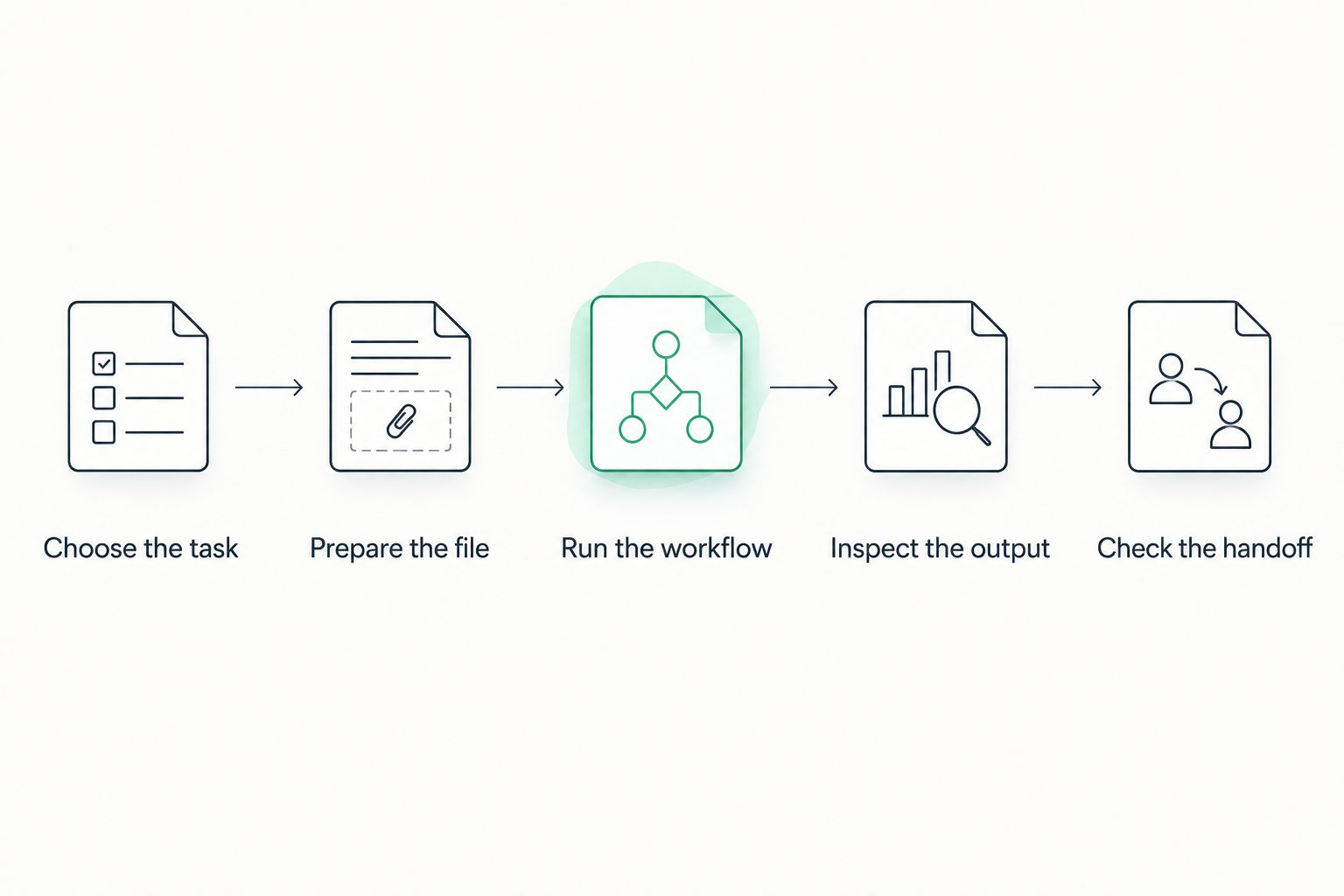
Follow this sequence for each candidate:
- Choose the task. Write down the required result before opening the tool.
- Prepare the file. Use the same source document for comparable tests.
- Run the workflow. Complete conversion, editing, drafting, or signing as appropriate.
- Inspect the output. Open the result outside the editor and check it against the source.
- Check the handoff. Confirm that the intended recipient can use the completed document.
Inspect 2 outputs where conversion is involved: the editable version and the final PDF. A clean PDF does not prove that the editable file preserved the structure you need for future changes.
Use 4 checks at the finish: text accuracy, layout, signature placement, and recipient usability. Apply only the checks relevant to your task; a collaborative draft and a signed agreement do not have identical acceptance criteria.
For a 2026 buying decision, also review the current subscription terms and your organization's document-handling requirements. Do not upload confidential material simply because a tool supports the file format. Your policy determines whether an online workflow is appropriate.
When staying with FormSwift is the right call
Stay with FormSwift when its templates match your document need and the completed output passes your checks. You do not need a different platform merely because another product has a broader feature list.
Keeping a working template workflow is the right call when you have no unresolved conversion, editing, collaboration, or signing requirement. Reassess when the task changes, not when a comparison page introduces another product name.
FAQ
What's the best FormSwift alternative in 2026?
Zendocs is the best fit on this shortlist for browser-based document conversion, editing, signing, and management. Choose Adobe Acrobat for detailed PDF work, Docusign for signature collection, or Google Docs for collaborative drafting.
Is Adobe Acrobat better than FormSwift?
Adobe Acrobat is the better fit when your main task is detailed PDF editing, conversion, or OCR. FormSwift is the more relevant starting point when you need a document template rather than extensive file-level work.
Can Docusign replace FormSwift?
Docusign replaces the signature-collection part of a workflow, not every document-creation task. Prepare and review the content before sending it for signature.
Can I use Google Docs instead of FormSwift?
Use Google Docs instead of a template-first workflow when your main need is collaborative drafting. It supports shared editing and PDF export, but direct PDF editing and external signing are separate decisions.
Which FormSwift alternative should I use for scanned PDFs?
Adobe Acrobat is the PDF-focused option on this shortlist for scanned documents because it includes OCR. Inspect recognized text and exported files before relying on the result.
Do I need a new tool just to fill out a form?
You do not need a replacement if your existing workflow fills the required form and produces a usable document. Switch only when you identify an unmet requirement, such as conversion, detailed editing, or recipient signing.
How should I compare FormSwift alternatives before subscribing?
Compare alternatives using representative documents and the same required output. Inspect the exported file, review the recipient handoff, and check current subscription terms before deciding.
One last thing
The recipient's copy is the real test. Open the completed file outside the tool that created it, check the wording and layout, and confirm that it works for the person who receives it. An attractive editor preview is not your deliverable.


