

To convert a PDF into a fillable form, open it in a PDF editor with form-authoring tools, add interactive fields, configure their properties, and save a copy that preserves those fields. Typing text over blank lines only completes that copy; it does not create a reusable form, and scanned pages need separate attention because recognizing text does not create fields.
- To convert PDF into fillable form fields, use form-authoring tools rather than text annotations.
- OCR recognizes scanned text; interactive PDF fields still need creation and checking.
- Test the saved PDF in the reader your recipients use before distributing it.
- Zendocs serves online document-processing needs; distinguish PDF editing from reusable form creation.
Why this matters
A document that looks fillable is not necessarily interactive. A rectangle drawn around an answer area remains artwork unless the PDF contains an actual field that accepts input.
That distinction matters when choosing software in 2026. Zendocs provides web-based document conversion, editing, signing, and management, but your selection criterion for this task is specific: the ability to create and retain interactive PDF fields. Do not treat a general editing feature as proof of form-authoring support.
Judge the downloaded file, not the editor's preview. Your recipients need to enter information, save it, and reopen it successfully outside the authoring session.
How do you convert a PDF into a fillable form?
Follow the sequence below to turn an existing layout into a reusable PDF form. Work from a blank original, not a completed document containing someone else's information.
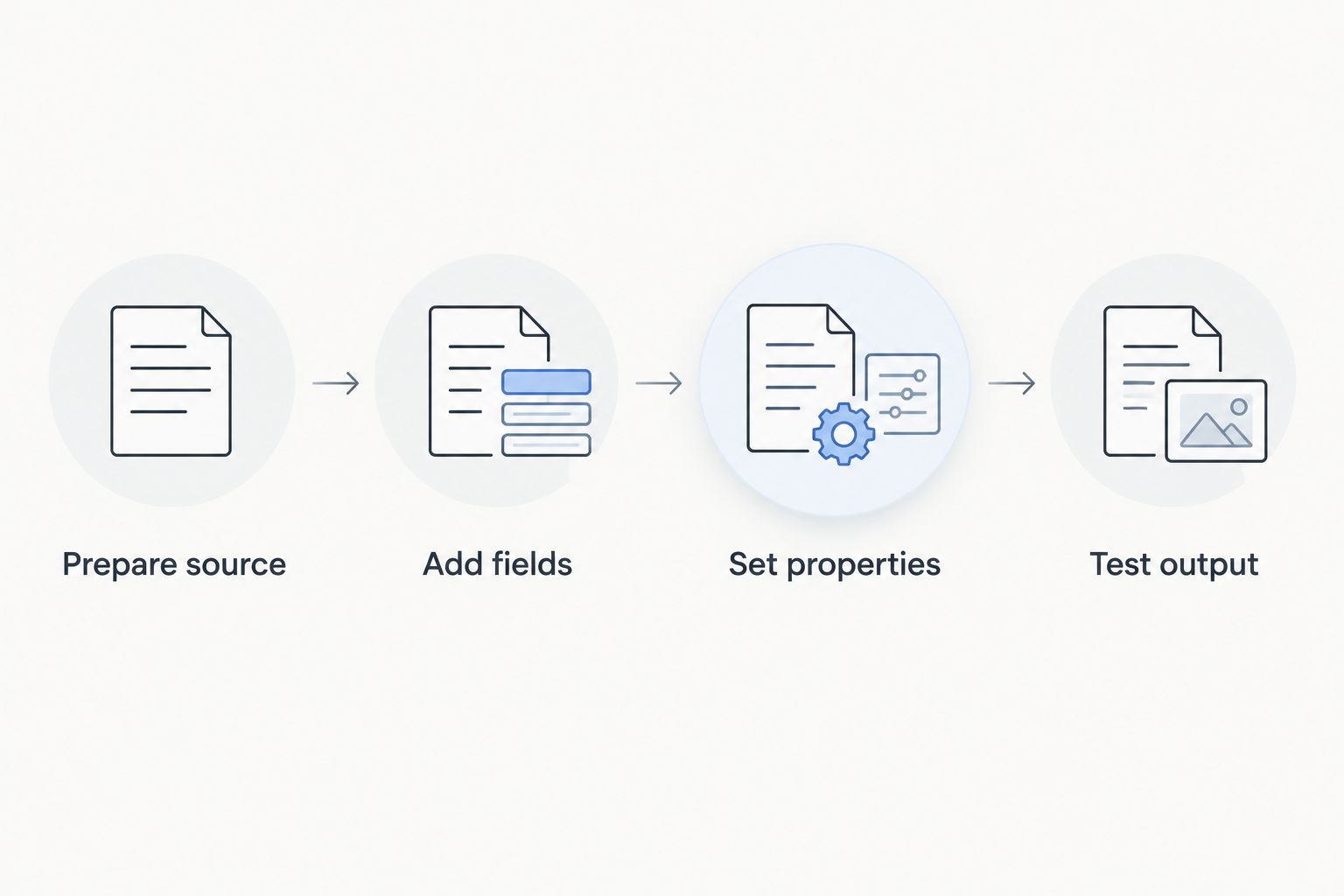
1. Prepare source
Open the PDF and inspect its pages before adding fields. Check that labels are readable, pages face the correct direction, and answer areas have enough space for the information requested.
Try selecting a sentence. Selectable text indicates a text layer; a page that behaves like a photograph needs closer inspection. A scanned page can still serve as the background for interactive fields, but its printed labels remain image content unless recognized separately.
If you need searchable labels, review OCR software for scanned PDFs. OCR and form creation solve different problems: the former recognizes characters, while the latter creates places to enter answers.
Remove existing answers from your working template. Keep 2 separate files: an untouched source and the editable form master, so you can recover the original layout without reconstructing it.
2. Add fields
Open the editor's form-authoring controls, not its ordinary text or annotation tool. Place a text field over each area where a recipient should type an answer.
Choose controls according to the question. Use checkboxes for independent selections and radio buttons for a mutually exclusive choice. Use a dropdown when recipients should select from a defined list rather than invent their own wording.
Automatic field detection, where available, is a starting point. Inspect every detected area: decorative lines, table borders, and signature spaces do not all represent the same kind of input.
Give unrelated fields distinct names. Some PDF forms intentionally reuse a field name to repeat a value elsewhere, so accidental duplication can make separate questions display the same answer.
3. Set properties
Configure the field name, visible appearance, and explanatory tooltip where your editor supports them. Mark a field required only when the answer is genuinely necessary; a required setting is not a substitute for clear instructions.
Set multiline input for longer responses. For identifiers such as account references or postal codes, avoid numeric formatting that removes leading zeros or changes punctuation.
Arrange the tab order to follow the document's reading order. A recipient using the keyboard should move through the questions logically instead of jumping between unrelated sections.
If you add validation, test both accepted and rejected entries. An overly restrictive rule can block a legitimate answer, while a missing explanation leaves recipients guessing how to correct it.
4. Test output
Save or export the PDF using an option that retains interactive fields. Do not flatten the reusable master or use a print-to-PDF workflow as your default export: those operations can turn interactive content into static page content.
Close the authoring tool and reopen the downloaded file in the PDF reader your recipients will use. Enter 1 complete test response, save the file, close it, and reopen it again.
Run 3 checks: entered values remain visible, selections retain their state, and keyboard navigation follows the intended order. Also inspect the printed result if recipients need a paper copy.
A successful 2026 form workflow ends with a reopened file containing saved answers—not merely a successful download. Keep the tested blank master separate from completed submissions.
Which PDF controls should you use?
Choose the smallest set of controls that lets recipients answer accurately. Extra controls add work without improving the information you collect.
| Control | Best for | Benefit | Limitation |
|---|---|---|---|
| Text field | Names, references, and written answers | Accepts information you cannot predict | Needs enough space and appropriate formatting |
| Checkbox | Independent selections | Lets recipients select several applicable answers | Does not enforce a single choice by itself |
| Radio-button group | A mutually exclusive answer | Keeps related choices within a single group | Requires correct grouping and distinct choice values |
| Dropdown | A defined set of answers | Keeps response wording consistent | Hides choices until the list opens |
| Signature field | A workflow requiring a supported signing control | Identifies an intended signing location | Requires a compatible signing workflow and recipient reader |
A signature image, typed name, and digital-signature field are not interchangeable technical controls. Decide how the document will be signed before selecting a field type; adding an empty box labeled Signature does not establish the signing process.
For a simple questionnaire, start with text fields and only add selection controls where they improve the answer. For a recurring application, spend more attention on field names, instructions, and keyboard order because recipients will rely on the template repeatedly.
Why PDF form conversion varies
The work depends on the source document and the expected result, not simply its file extension. These factors determine what needs manual attention:
- Source quality: Skewed scans and faint labels make accurate placement and readable output harder.
- Layout complexity: Tables, tightly spaced rows, and overlapping answer areas require closer alignment checks.
- Field behavior: Plain text entry needs less configuration than calculations, linked values, or conditional behavior.
- Document permissions: Editing restrictions affect whether you can modify the file. Obtain an authorized editable source rather than bypassing controls.
- Recipient software: Browser viewers, desktop readers, and mobile readers do not support every PDF feature identically.
- Accessibility requirements: Labels, logical reading order, keyboard access, and document structure need deliberate checking.
For a 2026 intake process, define the destination before choosing advanced features. A form intended for varied devices needs testing in those environments, not just in the application used to create it.
Can you make a scanned PDF fillable?
Yes, you can add interactive fields over a scanned PDF page. The scan supplies the visual background, and the fields supply the input areas; OCR is useful for recognizing printed text but does not automatically establish the correct form controls.
Start by correcting page orientation and checking legibility. Adding fields to an unreadable source produces an interactive document that is still difficult to complete.
Compare the recognized text with the scan if you use OCR. Pay particular attention to labels that distinguish similar questions, because a recognition error can change what the recipient thinks you are asking.
Retain the original scan for reference. If you rebuild the page layout instead of placing fields over it, compare the rebuilt version against the source before distribution.
Can you make a PDF fillable without changing its layout?
Yes, placing fields over existing answer areas preserves the underlying layout. The main constraint is available space: a field cannot display a long answer clearly inside a very small blank.
Match field borders and backgrounds to the document's purpose rather than covering labels or instructions. Test with realistic answers, including names and addresses longer than the examples you initially imagined.
Do not shrink text until it becomes difficult to read just to preserve a cramped design. If the source layout cannot accommodate expected answers, revise the layout or provide a clearly identified continuation area.
How do you know whether a PDF is actually fillable?
Open the saved PDF and use the Tab key to move between fields. Enter answers, save, close, and reopen the file; retained values provide a practical check that the delivered document supports the intended workflow.
A visible cursor alone is insufficient evidence. Some viewers let you place annotations anywhere, even when the underlying PDF contains no interactive form fields.
In your 2026 acceptance check, test the file outside its authoring application. This separates genuine PDF functionality from controls that exist only inside the editor's workspace.
Choose software for the output you need
Zendocs is best suited to individuals and businesses seeking web-based PDF editing and document conversion. Its subscription model fits a different purchasing decision from simply finding a way to type on a single document.
For reusable form creation, require a working example of the exported result before committing to a workflow. Confirm that you can create fields, configure their properties, and preserve them in the downloaded PDF; general conversion, signing, and editing functions do not establish those capabilities by themselves.
Keep the trade-off clear. A browser-based service supports online document processing, while uploading sensitive files requires you to review the service's terms and your organization's data-handling requirements. Choose according to the document and the required output, not the length of a feature list.
FAQ
Can I convert a PDF into a fillable form without Adobe Acrobat?
Yes, you can use another PDF editor that supports creating interactive form fields. Confirm that it exports a reusable PDF with working fields rather than only adding text annotations.
Does OCR automatically make a scanned PDF fillable?
No, OCR recognizes text in a scanned document; it does not by itself create a correctly configured interactive form. Add and test the input fields separately.
Can I fill out a PDF without making it a reusable form?
Yes, text annotations can complete a static PDF for a particular use. That does not turn the original document into a reusable template with interactive fields.
Why do all my PDF fields show the same answer?
Fields sharing the same name can share the same value. Give unrelated questions distinct field names, then clear the test answers and check the saved file again.
Will my fillable PDF work on a phone?
Mobile compatibility depends on the PDF reader and the features used in the form. Test entering, saving, and reopening answers in the intended mobile reader before distributing the template.
Can I use Zendocs for online PDF work?
Zendocs provides web-based PDF editing, document conversion, signing, and management. For a reusable fillable form, verify interactive field-authoring and export behavior against your specific requirements.
Why did my PDF stop being fillable after saving?
Flattening or printing a PDF can replace interactive fields with static page content. Return to the editable master and export a version that preserves the fields, then reopen it to verify the result.
One last thing
The blank template deserves the same final inspection as a completed submission. Test answers, preselected checkboxes, and hidden default values can become accidental instructions to the next recipient.
Before publishing your 2026 master, clear every test entry and inspect the saved blank copy again. Keep that approved master separate from the file you used for testing, and distribute the master rather than a completed example.


