

Instafill’s strength is completing PDF forms from information in source documents. If your work also requires document conversion, editing, signing, and file management, choose an alternative around that wider workflow rather than form filling alone. The best Instafill alternative in 2026 is Zendocs for browser-based document processing; DocuSign is the better fit when collecting signatures is the main job.
- For instafill alternatives, choose Zendocs when PDF editing, document conversion, signing, and management belong in one browser-based workflow.
- Choose Adobe Acrobat for PDF editing and conversion; choose DocuSign for signature collection.
- Choose LibreOffice Draw for local PDF edits, not automated form completion.
- Keep Instafill when completing forms from source information remains your main requirement.
Why this matters
A form filler, a PDF editor, and a signature service solve different problems. Comparing them as interchangeable tools sends you toward a product that handles one step well but leaves the rest of your work elsewhere.
Start with what happens after a form is completed. Do you edit the document, convert it to another format, send it for signatures, or retain it alongside related files? Your answer determines which Instafill alternatives deserve a closer look in 2026.
Choose for the finished document, not just the filled fields. A successful replacement must handle your required output without introducing another manual handoff.
Instafill alternatives at a glance: 2026 shortlist
The comparison below separates each product’s main role. It does not treat broader document editing as equivalent to automated form completion.
| Tool | Best for | Standout capability | Difference from Instafill | Main trade-off |
|---|---|---|---|---|
| Instafill | Completing forms from source information | Automated PDF form completion | The benchmark for form-focused work | Form completion is not the same selection criterion as document editing or signature routing |
| Zendocs | Online processing across document formats | Converting, editing, signing, and managing documents | Addresses a broader document-processing workflow | A web-based subscription does not fit a desktop-only requirement |
| Adobe Acrobat | PDF editing and conversion | Editing PDF text and images and exporting documents | Centers on working with the PDF itself | A PDF editor is not automatically a replacement for source-driven form completion |
| DocuSign | Sending documents for signatures | Signature requests, recipient routing, and status tracking | Centers on the signing process | Does not replace a general-purpose PDF editor |
| LibreOffice Draw | Local PDF edits | Opening PDFs for object-level editing | Provides a desktop editing route | Imported layouts require inspection; automated form completion is not its purpose |
None of these choices wins every category. Use the table to eliminate the wrong product type before evaluating individual features.
1. Zendocs: best for browser-based document processing
Zendocs is a web-based subscription tool for converting, editing, signing, and managing PDFs and other document formats, including Word, Excel, PowerPoint, and images. Its fit is the individual or business whose work extends beyond completing a form.
That distinction matters when your starting file and required output differ. A document-processing tool belongs on your shortlist when you need to move between formats, make edits, and handle signing within your working process.
Where it shines
- Broader document scope: PDF, Word, Excel, PowerPoint, and image formats are part of its stated offering.
- Several document tasks: Conversion, editing, signing, and management address different stages of document work.
- Browser-based use: The service fits a preference for online document processing rather than a desktop-only application.
Where it falls short
- Desktop-only requirements: A web-based service is the wrong delivery model when your workflow requires a local application.
- Form-filling-only requirements: A broader document tool is not automatically the best choice when automated field completion is your sole priority.
- Subscription preference: The business model does not match a requirement for software without an ongoing subscription.
Best for: Individuals and businesses that need online document processing across several formats.
| Decision dimension | Zendocs | Instafill |
|---|---|---|
| Main selection reason | Converting, editing, signing, and managing documents | Completing forms from source information |
| Starting material | PDFs and other document formats | Forms and information used to complete them |
| Evaluation priority | Required document tasks and output formats | Correct placement of information in form fields |
Compare these products using the same document, but judge different outcomes. For the broader workflow, check whether the edited or converted output is usable; for form completion, check whether each entry belongs in the correct field.
Verdict: Buy for a broader browser-based document workflow; skip if a desktop-only application is mandatory.
2. Adobe Acrobat: best for editing the PDF itself
Adobe Acrobat belongs on your shortlist when the problem is inside the PDF: text needs changing, images need adjusting, pages need organizing, or content needs exporting to another format. Its established PDF editing and conversion capabilities make it a different kind of alternative from a form-completion service.
Choose Adobe Acrobat based on the changes your finished document requires. Filling an existing field and rewriting a paragraph are separate tasks, even when both happen in a PDF.
Where Adobe Acrobat shines
- PDF content editing: Work with text and images rather than treating the file only as a collection of fields.
- Document conversion: Export PDF content into editable document formats.
- Page organization: Handle page-level work as part of preparing the final file.
Where Adobe Acrobat falls short
- Different automation goal: PDF editing alone does not establish an equivalent to Instafill’s source-driven form completion.
- Conversion inspection: Converted files require checks for layout, table structure, and content placement.
- Task overhead: A full PDF editing environment is unnecessary when your only job is entering information into a form.
Best for: People who need to modify PDF content and prepare an edited or converted deliverable.
| Decision dimension | Adobe Acrobat | Instafill |
|---|---|---|
| Main job | Edit and prepare PDF documents | Complete PDF forms |
| Content changes | Text, image, and page editing | Information entered into form fields |
| Output check | Layout and edited content | Field accuracy and completeness |
| Selection trigger | The document itself needs changing | The form needs information from source material |
Use a representative file with the same layout complexity as your real work. A simple letter does not tell you how well your workflow handles a document with columns, tables, or several page sizes.
Verdict: Buy for PDF editing and conversion; hold if your main requirement is automated form completion.
3. DocuSign: best for collecting signatures
DocuSign is a better comparison when the bottleneck starts after the document is prepared. Its electronic-signature workflow supports sending documents to recipients, arranging signing steps, and tracking progress.
The key question is not whether you can place a signature on your own PDF. It is whether you need another person to receive, review, and sign the document through a managed process.
Where DocuSign shines
- Recipient workflows: Send documents to the people who must sign them.
- Signing order: Arrange a sequence when signatures depend on earlier participants.
- Status tracking: Follow the document through the signing process.
Where DocuSign falls short
- Not a general PDF editor: Signature collection does not replace editing paragraphs, rebuilding layouts, or converting files.
- Document preparation remains separate: You still need a correct document before requesting signatures.
- Wrong fit for self-only edits: A recipient workflow adds little when you only need to change and save your own file.
Best for: Businesses whose document work depends on collecting signatures from other people.
| Decision dimension | DocuSign | Instafill |
|---|---|---|
| Main job | Collect electronic signatures | Complete forms from source information |
| Workflow focus | Recipients and signing progress | Form fields and their contents |
| Success criterion | Required participants finish signing | Required fields contain correct information |
These tools address different stages rather than a simple better-or-worse choice. If incomplete fields delay signature requests, solve form preparation first; if completed documents wait on signers, prioritize the signing workflow.
Verdict: Buy for signature collection; skip as a replacement for general PDF editing.
4. LibreOffice Draw: best for local PDF edits
LibreOffice Draw offers a desktop route for opening PDFs and making object-level changes. It suits users who want to work locally and can inspect the file after import and export.
Its limitation is the imported document structure. Treat the PDF as an editing task to verify, not as a guaranteed copy of the original authoring file.
Where LibreOffice Draw shines
- Local editing: Work in a desktop application.
- Object-level changes: Adjust imported text and graphic elements.
- Focused corrections: Consider it when a document needs limited edits rather than a managed signing process.
Where LibreOffice Draw falls short
- Layout checks: Inspect imported text, spacing, and graphics before accepting the result.
- Form automation mismatch: Its purpose is document drawing and editing, not completing forms from source information.
- No signing workflow substitute: Local edits do not replace recipient routing and signature tracking.
Best for: Users who need local PDF corrections and accept manual output checks.
Verdict: Buy into the desktop workflow for local edits; skip for automated form completion or signature collection.
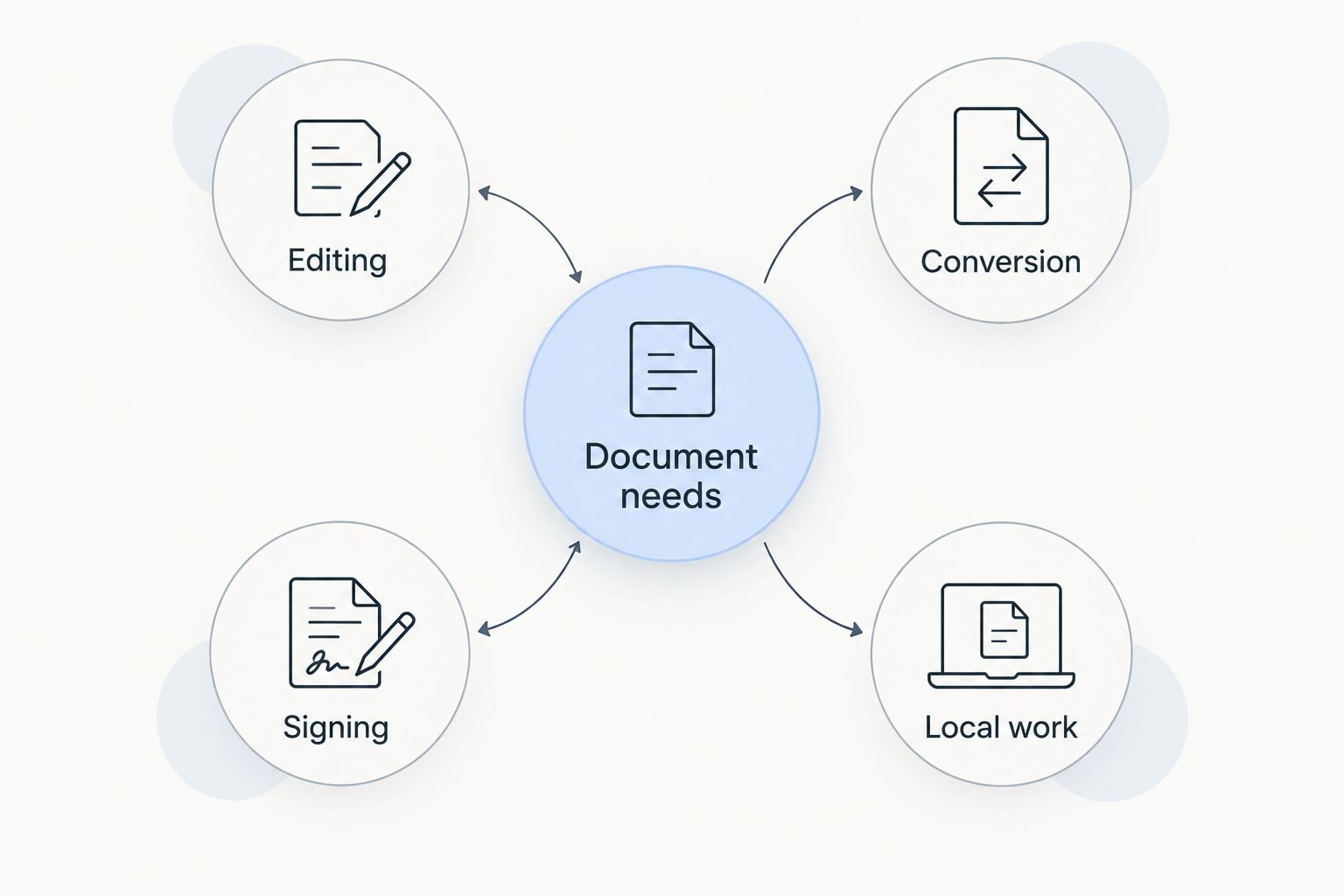
Why people switch from Instafill
The strongest reason to switch is a mismatch between the task and the product category. For your 2026 shortlist, use the following requirements as decision triggers—not as evidence that Instafill performs poorly.
- Editing: You need to change document content, not just complete existing fields. Compare document editors.
- Conversion: Your required output is an editable document or spreadsheet rather than a completed PDF. Compare conversion workflows.
- Signing: The file is ready, but other people must sign it. Compare recipient-based signature services.
- Local work: Your process requires a desktop application. Evaluate that requirement before considering online tools.
Do not switch merely because another product has a longer feature list. A feature matters only when it replaces a task you actually perform.
Likewise, do not assume that a product described as a PDF tool handles every PDF task. Editing page content, completing fields, converting a file, and collecting signatures need separate checks.
How to evaluate an alternative before committing
Use a representative document and define the output before opening a tool. This keeps the evaluation tied to your work instead of a product’s feature menu.
Start with the source
Choose a file that reflects your usual documents. Include relevant tables, scanned pages, existing fields, or unusual formatting rather than testing only the easiest example.
Use non-sensitive sample information until you have reviewed the service’s data-handling terms. Document tools process the contents you give them, so privacy review belongs before routine uploads.
Define the finished file
Write down what you must deliver: a completed form, an edited PDF, an editable document, or a signed agreement. Keep required content and formatting separate from preferences.
If another person receives the result, inspect it from that person’s perspective. Confirm that the file opens correctly and that the intended content is visible.
Check the handoffs
Follow the entire task, including any step outside the candidate tool. A product that finishes an edit but leaves you rebuilding the layout has not completed your workflow.
For signatures, check the recipient process. For conversions, check the exported file. For form filling, compare the entries with the source information rather than accepting a completed-looking page.
When staying with Instafill is the right call
Stay with Instafill when completing forms from source information is the job you need done. A broader editor is not an upgrade merely because it supports unrelated document tasks.
For a 2026 decision, compare the actual review work each option leaves you. If your current process produces the required form and you can verify it efficiently, switching categories introduces a new workflow without solving a different requirement.
Keep document preparation and signature collection distinct, too. Needing a signing service does not necessarily mean you should replace the tool that prepares your forms.
FAQ
What's the best Instafill alternative in 2026?
Zendocs is the best fit for browser-based conversion, editing, signing, and document management across several formats. Choose Adobe Acrobat for PDF editing, DocuSign for signature collection, or LibreOffice Draw for local edits.
Is Adobe Acrobat better than Instafill?
Adobe Acrobat is the better fit when you need to edit PDF content or convert documents. Instafill is the more directly aligned choice when the main task is completing forms from source information.
Can DocuSign replace Instafill?
DocuSign replaces a signature-collection workflow, not the same form-completion task. Choose it when sending documents to signers and tracking their progress is your main requirement.
Which Instafill alternative works as a desktop PDF editor?
LibreOffice Draw provides a desktop option for opening PDFs and making object-level edits. Inspect the imported layout and exported result before using the finished file.
Do I need a PDF editor or a form filler?
Choose a PDF editor when you must change the document's content; choose a form filler when you must complete fields. If your workflow needs both, evaluate both tasks separately.
What should I check before uploading business documents?
Review the service's data-handling terms before uploading sensitive business documents. Use non-sensitive samples to evaluate the workflow until that review is complete.
Should I switch if Instafill already completes my forms?
Stay with Instafill if form completion meets your requirements and the output passes your review. Switch only when another product solves a specific unmet task, such as editing, conversion, or signature collection.
One last thing
The most useful comparison is the file you take out, not the screen you work in. Before choosing an Instafill alternative in 2026, open the finished document in a separate viewer and compare it with your required output.
A completed-looking form is not proof of correct information, and an edited-looking PDF is not proof of intact formatting. Make output inspection part of the decision, not a cleanup step after purchase.


