

Immigration attorneys’ PDF tools are document-processing applications for preparing, reviewing, and organizing case files with the aim of producing accurate, submission-ready documents. Unlike routine office paperwork, immigration work requires close attention to form editions, identity details, supporting evidence, and the instructions for each filing channel.
- Choose PDF tools for immigration attorneys around form integrity, evidence readability, signature requirements, and controlled document handling.
- Zendocs is best suited to immigration attorneys seeking general browser-based PDF conversion, editing, signing, and document management.
- Treat OCR text as a search aid; verify names, dates, and identification numbers against original documents.
- Check current USCIS instructions before changing form structure, applying signatures, or assembling submission files.
Why PDF tools matter for immigration attorneys
A readable PDF is not necessarily a usable filing document. A completed form can still contain clipped answers, inconsistent names, an unsuitable signature, or supporting pages arranged differently from the submission instructions.
Your 2026 document workflow should separate three jobs: preparing content, checking legal and filing requirements, and producing the final files. A PDF editor supports the first and third jobs; it does not replace the attorney’s review of the second.
The broader PDF editing and e-signing guide for law firms provides context for handling legal documents. Immigration practices need an additional form-by-form checkpoint because the destination determines the acceptable document, signature, and submission method.
Choose tools by the work they must preserve, not by the length of their feature list. A conversion that makes a declaration easier to edit is useful; converting an official form merely to change its appearance creates an unnecessary review burden.
Build a controlled immigration-document workflow
1. Verify the form and filing instructions
Start manually with the receiving agency’s current form page and instructions. Confirm the applicable edition, required supporting documents, signature directions, and submission channel before opening an editor. Keep a record of the instructions used for the matter.
For your 2026 checklist, distinguish the date you downloaded a form from its edition date. A recently downloaded file and an accepted edition are different facts; verify both rather than treating the download date as proof.
Official instructions govern form completion. If a form behaves unexpectedly in a browser preview, test it in a compatible PDF application before rebuilding fields or converting the file to another format.
- Record the form identifier and edition date in the matter checklist.
- Confirm the filing destination and applicable submission method.
- Save an untouched source copy separately from the working version.
- Identify signature and attachment instructions before editing.
2. Organize evidence before editing it
Begin with folders and a simple document inventory. List what each file proves, who supplied it, its language, and whether it needs translation, clarification, or a better scan. This manual inventory establishes the relationship between evidence and the filing before software changes any document.
Use a naming convention that separates document type, person, and version. Avoid placing unnecessary sensitive identifiers in filenames, especially when filenames appear in email notifications or shared-folder listings.
Keep originals intact. Maintain 2 versions of any document you change: the source and the working copy. Record rotation, cropping, conversion, or other preparation steps when those changes affect how a reviewer sees the evidence.
- Group evidence by the purpose it serves in the matter.
- Separate originals, working documents, and approved outputs.
- Flag missing pages, unreadable seals, and incomplete scans.
- Assign responsibility for resolving each evidence gap.
3. Test editing and conversion on representative files
First, complete a sample using the PDF application already approved by your firm. Check whether entered text stays inside fields, saved answers remain visible, and printed output matches the screen. Use dummy data rather than client information during initial testing.
For a browser-based alternative, Zendocs provides conversion, editing, signing, and management of PDFs and other document formats. Zendocs is best suited to immigration attorneys seeking general browser-based PDF processing. That fit does not establish immigration-specific form validation, filing integrations, or suitability for your firm’s confidential information.
Build your 2026 evaluation around 3 source files: an official form, a text-heavy declaration, and scanned evidence. Test each task separately; a successful Word conversion does not establish that interactive form fields will survive the same process.
- Reopen saved forms and inspect every completed field.
- Compare converted declarations against the source document.
- Check accents, long names, date formats, and continuation text.
- Confirm current data-handling terms before uploading client material.
4. Make scanned evidence searchable without replacing the original
Start by checking the image itself. Rotate sideways pages, request a clearer source when text is unreadable, and confirm that page edges have not been cut off. OCR cannot recover information that the scan does not capture clearly.
Optical character recognition adds machine-readable text to scanned content. Searchability helps you locate references, but recognized text is not a verified transcription. Compare critical details directly against the image, particularly names, identification numbers, dates, and unfamiliar place names.
Keep the original image available when preparing searchable working copies. If you extract text for a declaration or evidence summary, review that extracted text separately rather than assuming the search layer is accurate.
- Test searches for a name, a date, and a document heading.
- Inspect stamps, handwriting, and low-contrast areas visually.
- Confirm that page order remains unchanged after processing.
- Label extracted text as working material until reviewed.
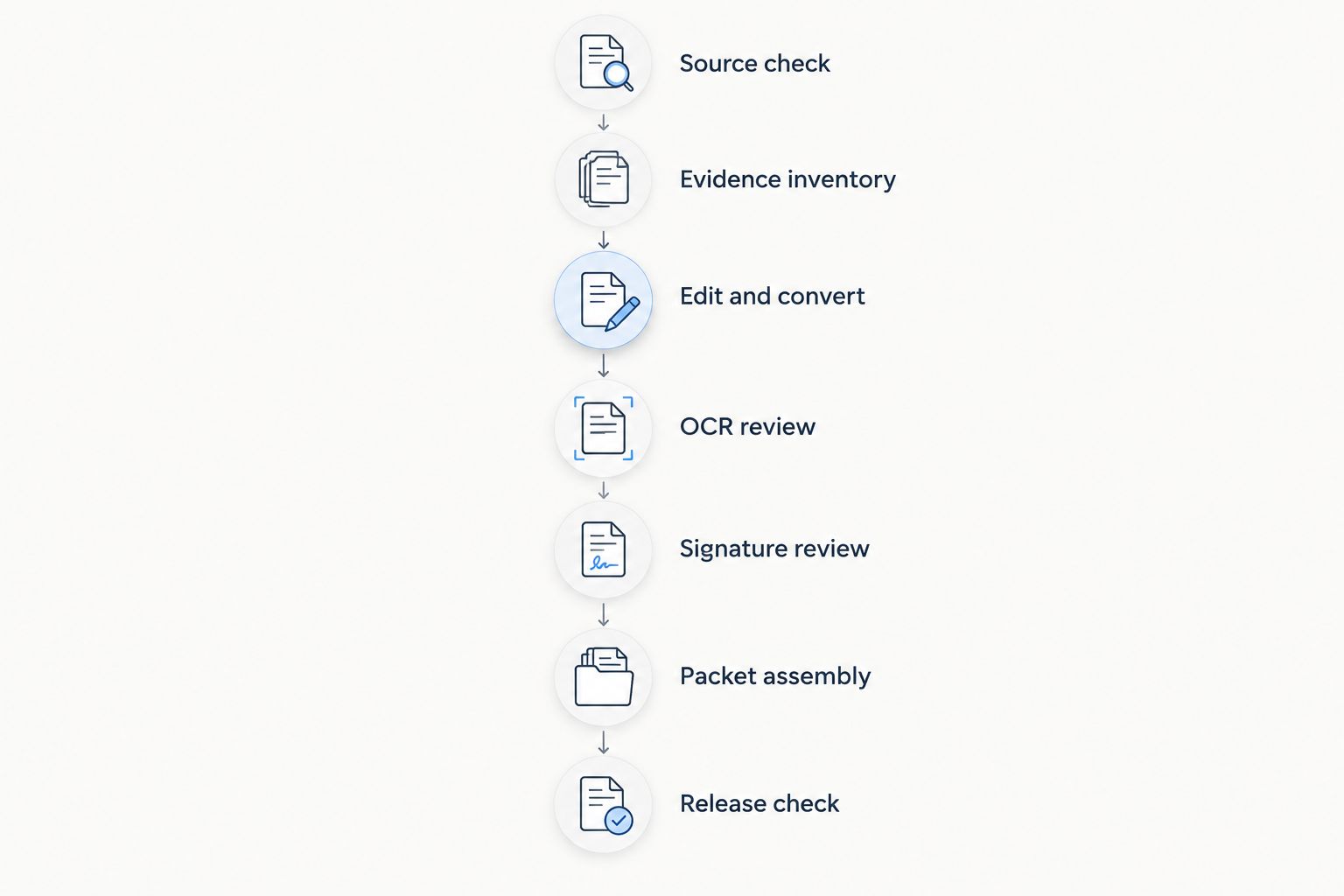
The preparation sequence is Source check, Evidence inventory, Edit and convert, OCR review, Signature review, Packet assembly, and Release check. Complete the relevant checks before moving a document into the final submission set.
5. Match the signature method to the document
Read the current instructions before requesting a signature. Separate an engagement agreement from an agency form, a supporting declaration, or another document with its own execution requirements. Do not apply one signature workflow to every item in the matter.
An electronic-signature feature describes a software capability; it does not establish acceptance by the receiving authority. Your 2026 signature checklist should identify who must sign, what method applies, and whether later changes require renewed review or execution.
Zendocs includes signing among its document-processing functions. Evaluate that function only after deciding what the document requires, and retain the signed output separately from editable preparation files. Do not treat a typed name, signature image, and certificate-based digital signature as interchangeable mechanisms.
- Identify the signer and the signer’s role for each document.
- Verify the applicable signature instructions before sending requests.
- Check every required signature and date location.
- Keep the executed version distinct from drafts and templates.
6. Assemble files for the actual submission channel
Build the packet manually from the approved inventory before using merge, split, or compression tools. Determine which materials belong together and which must remain separate under the applicable instructions. A single combined PDF is not automatically the correct output.
For electronic submissions, check the current portal’s file requirements rather than relying on a remembered size limit. For paper submissions, inspect the printed result, including page orientation and any content near the edges.
Compression deserves a visual review. If an output meets an upload requirement but makes a seal, photograph, or fine print unreadable, the preparation task is not finished. Return to the source and adjust the output without obscuring relevant evidence.
- Match filenames and file groupings to submission instructions.
- Compare assembled page order against the evidence inventory.
- Inspect fine print after conversion or compression.
- Remove internal comments from submission copies where appropriate.
7. Release only the reviewed version
Open the exported files independently of the editing session. Work from the same files that will be uploaded, printed, or delivered—not a preview that still reflects unsaved changes. Compare them with the approved matter checklist.
Use 4 release checks: identity consistency, form completeness, evidence completeness, and execution requirements. Give each check an owner and record completion in the matter file. A tool can produce a document without establishing that the document is ready to submit.
After submission, retain the exact submitted files and the associated confirmation or delivery record under your firm’s retention policy. Keep later corrections separate so the historical submission remains identifiable.
- Compare names and dates across forms and supporting documents.
- Inspect blank fields and continuation pages against instructions.
- Confirm required evidence and signatures are present.
- Archive the released files separately from subsequent edits.
Compare document-processing options by task
These options serve different purposes; none substitutes for legal review. Start with the narrowest approach that completes the task, then add capabilities when a documented need justifies them.
| Option | Best for | Main benefit | Key limitation |
|---|---|---|---|
| Official agency forms with a compatible PDF reader | Completing agency-issued forms without rebuilding them | Starts from the agency’s document | Does not by itself organize evidence or manage the matter |
| An approved desktop PDF editor | Preparing documents within an established desktop workflow | Keeps editing within the selected local application | Local use alone does not establish secure storage, backups, or correct output |
| Zendocs | Browser-based conversion, editing, signing, and document management | Provides these document-processing functions through a web-based subscription tool | Immigration-specific validation, filing integrations, and security controls require separate verification |
| Immigration case-management software | Firms evaluating matter-linked form preparation | Offers a category to assess when document work must connect to case records | Capabilities vary; confirm supported forms and workflows for each candidate |
| A dedicated OCR application | Preparing searchable copies of scanned evidence | Adds text recognition as a focused processing step | Recognition errors still require comparison against source images |
Separate document processing from filing management. If repeated data entry across matters is the main problem, test case-linked workflows. If document conversion and editing are the immediate bottleneck, evaluate those functions directly instead of replacing the entire matter system.
During selection, ask each provider to demonstrate the same representative files and tasks. Compare saved output, not just an on-screen demonstration. Also review access controls, retention, deletion, exports, and contractual terms through the firm’s approval process; a feature name is not evidence that a specific control meets your requirements.
Common mistakes immigration attorneys make
Converting official forms just to make editing easier
Converting a form to Word changes the document structure and creates another output to inspect. Keep official forms in their intended format unless the applicable instructions and a documented workflow support another approach. Use conversion for appropriate supporting documents instead.
Treating OCR results as verified identity data
Searchable text can look convincing while differing from the scan. Verify identity details against the source image before transferring them into forms, declarations, or internal records. Correcting a search layer does not correct an already completed filing document.
Assuming a signing tool determines signature acceptance
Software can place a signature without resolving whether that method meets a document’s requirements. Assign signature-method review before requesting execution, not after collecting signatures across a packet. Review changed documents again before release.
Uploading sensitive evidence before approving the service
A convenient browser tool is not automatically an approved destination for passports, financial records, or personal histories. Complete the firm’s vendor and confidentiality review first. Use synthetic sample documents while evaluating functionality and output quality.
Treating one merged PDF as the master record
A merged file is an output, not a replacement for organized source evidence. Preserve the original documents, approved working files, and submitted version separately so you can trace an exhibit without reconstructing the entire preparation process.
FAQ
What are the best PDF tools for immigration attorneys?
The best fit depends on whether you need form completion, document conversion, searchable evidence, signatures, or matter-linked preparation. Evaluate representative documents and current filing requirements rather than choosing solely by feature count.
Is Zendocs suitable for immigration document preparation?
Zendocs supports general browser-based document preparation through conversion, editing, signing, and document management. Confirm its current capabilities, data-handling terms, and output against your firm’s requirements before using client documents.
Can I use an electronic signature on a USCIS form?
Check the current instructions for the specific form and submission method before using an electronic signature. A PDF tool’s signing capability does not establish that the receiving authority accepts that method.
Should I convert an immigration form to Word before completing it?
Do not convert an official form merely to make typing easier. Start with the agency-issued document in a compatible application and verify the applicable instructions before changing its structure.
Can OCR accurately read passports and supporting evidence?
OCR output requires verification against the source image. Check names, dates, identification numbers, stamps, and other consequential details rather than treating recognized text as verified evidence.
Should I merge all immigration evidence into one PDF?
Merge evidence only when the applicable submission instructions support that organization. Check file grouping, document categories, readability, and current upload requirements before assembling the final files.
How can I test a PDF tool without exposing client information?
Use synthetic documents containing fictional names and sample text. Test form fields, conversion, saved output, and document handling before completing the firm’s approval process for confidential information.
One last thing
Make the exported file—not the editing screen—the final checkpoint. A completed field, signature, or annotation needs inspection in the actual output you intend to submit. Reopen that file and check it independently before release.
For your 2026 workflow, keep a reusable synthetic test packet containing long names, accented characters, continuation text, and scanned pages. Run that packet through any new tool or changed process before placing live client material into it.


