

Healthcare practices’ PDF form management is the process of creating, completing, reviewing, and storing documents with the aim of getting usable information into the right patient record. This 2026 guide explains how to manage pdf forms for healthcare practices without confusing a document editor with an approved system for handling patient information.
- Manage pdf forms for healthcare practices through controlled templates, secure intake, clinical review, and approved record storage.
- Zendocs suits general PDF preparation; evaluate patient-information handling separately before using it for clinical documents.
- Choose fillable forms for structured answers, not scanned pages that require staff to interpret handwriting.
- Treat patient intake, consent, and medical-record authorization as distinct workflows with different review requirements.
Why PDF form management matters for healthcare practices
Healthcare forms move between patients, reception staff, clinicians, and records teams. Each handoff needs a defined owner: a completed questionnaire still needs review, and a signature does not prove that a document reached the patient chart.
For your 2026 workflow, separate document preparation from patient-data processing. Zendocs provides web-based document conversion, editing, signing, and management; those functions alone do not establish suitability for protected health information, or PHI.
Zendocs is best suited to general PDF preparation, not as a substitute for a practice’s clinical record system. Start with blank templates or synthetic test data when evaluating any document tool.
The operational goal is clear: staff should know which form is current, who reviews the answers, and where the accepted record belongs. A convenient upload button does not answer those questions.
Build a controlled healthcare PDF workflow
1. Inventory your forms and assign an owner
Start manually with a shared inventory in your practice’s approved workspace. List each form’s purpose, intended recipient, source file, reviewer, and storage destination before changing software.
Distinguish clinical questions from administrative requests. A medical-history questionnaire needs a different reviewer from a change-of-address form, even when both arrive in the same packet. Give each template 1 accountable owner so that corrections do not depend on whoever last edited it.
Ownership also prevents conflicting copies. When reception staff discover an unclear question, they should report it to the template owner rather than create a local variation.
- Group forms into intake, consent, billing, records requests, and internal administration.
- Identify who approves wording and who reviews completed responses.
- Record where the editable master and published PDF are stored.
- Mark duplicate, obsolete, and unowned templates for review.
2. Define the information-handling boundary
Map where patient information enters, travels, and remains. A blank questionnaire and a completed questionnaire carry different risks; the same PDF editor does not automatically belong in both workflows.
Under the HIPAA Rules, a service provider that creates, receives, maintains, or transmits PHI on behalf of a covered entity generally needs an appropriate business associate agreement when it acts as a business associate. HHS guidance on cloud computing applies this principle to cloud service providers handling electronic PHI. A contract does not replace your practice’s risk analysis or security responsibilities.
For your 2026 review, have the responsible privacy or security lead approve the handling boundary before staff upload patient documents. Evaluate tools with synthetic records, not real patient files disguised with a changed name.
- Identify every upload, download, email attachment, and local copy.
- Determine whether a business associate agreement is required.
- Review access controls, retention terms, deletion procedures, and incident reporting.
- Keep patient information out of tools that have not received practice approval.
3. Create a usable master template
Begin with your existing word processor or approved PDF editor. Correct the wording and layout before adding fields; digitizing an ambiguous question only makes the ambiguity easier to distribute.
Zendocs supports conversion, editing, and signing across PDF and other document formats. Evaluate it as a web-based preparation option for blank templates, while checking the specific field-building and output requirements your practice needs. Do not assume that document editing includes clinical integration or specialized intake logic.
For PDF preparation in 2026, prioritize understandable questions over a dense packet. Ask separately about current medications and allergies rather than forcing unrelated information into a single box. Leave enough space for explanations and make optional questions visibly optional.
- Keep 1 published master for each form and retain its editable source.
- Use plain-language labels and explain unfamiliar medical terms.
- Separate required answers from optional administrative information.
- Add a version identifier and a named approval owner.
4. Test completion before releasing the form
Open the blank PDF in the applications your practice intends to support. Type into every field, save it, close it, and reopen the saved copy. A form that looks correct before completion can still produce clipped answers or missing saved entries.
Run at least 3 test submissions using synthetic information: a typical response, a long response, and an incomplete response. Include someone who did not design the form; familiarity hides confusing labels.
If you need to compare field-entry approaches, the PDF form filler software guide provides a separate starting point. Assess the actual output rather than choosing solely on the editing interface.
- Test keyboard navigation, reading order, and visible field labels.
- Check long names, multiline answers, dates, and checkbox selections.
- Confirm that entered information survives saving and reopening.
- Provide an alternative completion route for patients who cannot use the PDF.
5. Separate completion, review, and acceptance
Create a manual routing checklist before automating handoffs. A form moves through distinct states: the patient completes it, the responsible staff member reviews it, and the practice accepts the resulting record into its approved system.
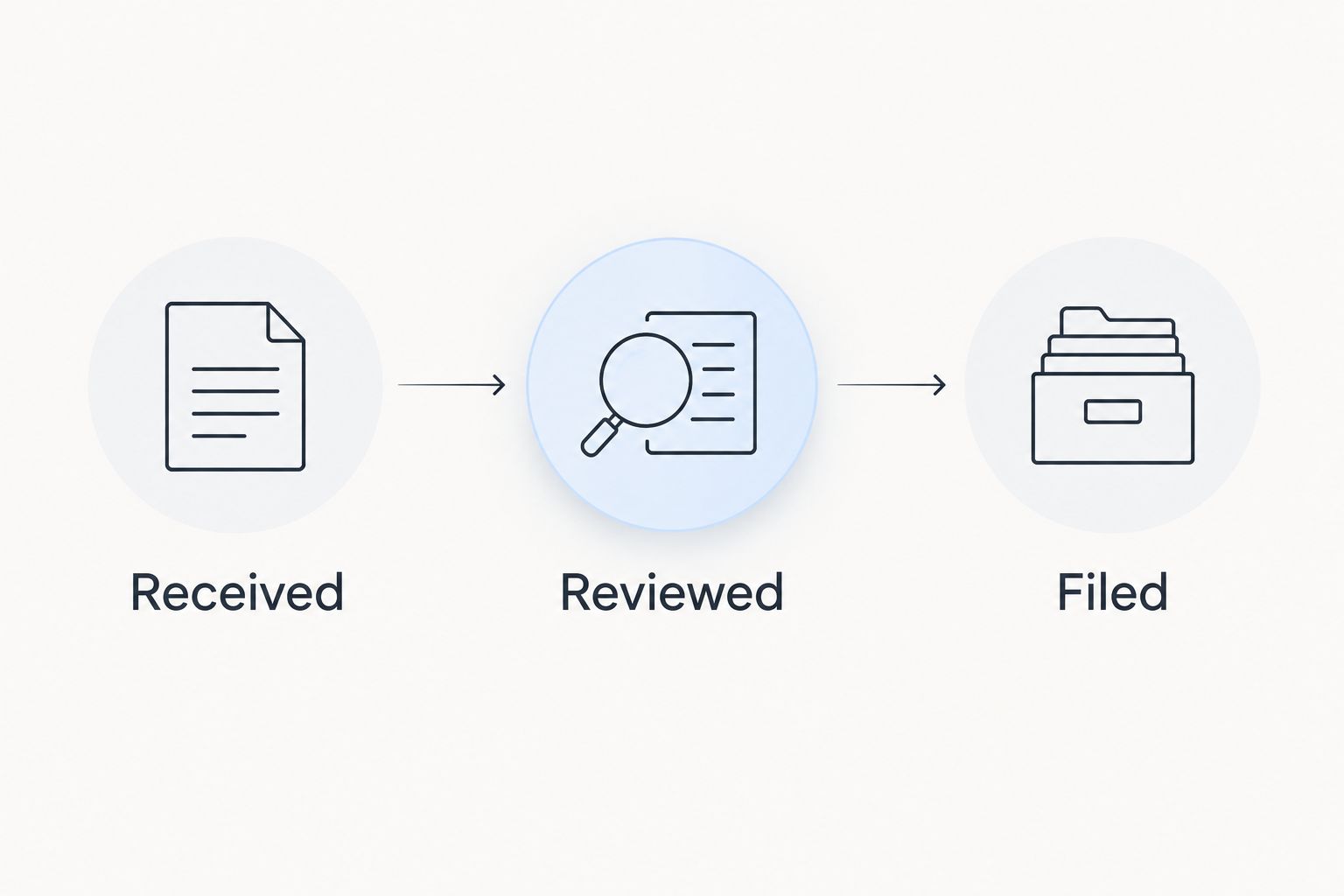
Define 3 workflow states—received, reviewed, and filed—so staff do not treat arrival as completion. A clinician still needs to assess a reported allergy; reception staff should not resolve a clinical discrepancy simply to close an administrative task.
Signing requires its own decision. Determine what the signature represents, whose signature is needed, and how your approved workflow associates the signer with the document. A signature image alone does not establish every element of a valid consent process.
- Assign an owner to each workflow state.
- Route clinical answers to the appropriate clinical reviewer.
- Return incomplete forms through an approved communication channel.
- Confirm that the accepted document reaches the correct patient record.
The sequence below separates receipt from review and filing. Use it to check your handoffs, not to replace the clinical judgments within them.
6. Control storage, access, and revisions
Use the approved patient-record destination as the endpoint, rather than leaving the accepted form in a download folder. Temporary working copies need an explicit handling rule too; otherwise the same information remains scattered across devices and inboxes.
Your 2026 retention policy should distinguish patient records, blank templates, and temporary processing copies. HIPAA does not set a universal medical-record retention period; applicable state law and other requirements need separate review. Do not turn a general compliance-document retention rule into a blanket rule for every patient chart.
When wording changes, preserve the relationship between the completed form and the version the patient received. Replacing the master template must not rewrite an already completed record.
- Grant access according to staff responsibilities.
- Separate editable masters from completed patient documents.
- Define how temporary copies are removed under approved policy.
- Retire superseded templates without altering historical records.
7. Measure handoff failures and fix the source
Start with a manual issue log inside an approved system. Track the reason a form needed rework, not just whether staff eventually completed the task. An unexplained missing signature and an unreadable scan require different fixes.
For a 2026 baseline, choose a defined review window and count forms received, forms returned for correction, and forms not yet filed. These are measurements to collect, not assumed performance benchmarks. Avoid placing patient details in a general project-management tool while tracking the problem.
Review patterns with the people doing the work. If patients repeatedly skip a field, inspect the wording and layout before adding another reminder.
- Record rework categories without unnecessary patient information.
- Distinguish patient omissions from internal routing errors.
- Check whether superseded templates remain in circulation.
- Assign corrective action to the form owner and verify the revised output.
Compare options by workflow, not feature count
Choose the narrowest tool that satisfies the approved workflow. Preparing a blank template, collecting patient answers, and maintaining the clinical record are different jobs. Combining them in a purchasing checklist obscures the limitations of each option.
| Option | Best for | Main advantage | Key limitation |
|---|---|---|---|
| Existing approved desktop tools | Occasional template updates | Keeps preparation within an established working environment | Distribution and version control still need a defined process |
| Zendocs | General web-based document preparation | Supports conversion, editing, signing, and document management | General document capabilities do not establish approval for PHI or clinical integration |
| Approved patient portal workflow | Patient-linked collection and communication | Provides a defined place to exchange information when configured for that purpose | Supported form types and routing depend on the practice’s actual system |
| Paper forms with approved scanning | Patients who need a nondigital completion route | Allows handwritten completion without requiring a patient device | Staff must check legibility, patient association, and scan completeness |
Keep the trade-offs visible during procurement. A desktop workflow can become difficult to coordinate across staff; a web-based workflow adds vendor and data-handling review. Paper avoids a patient-device requirement but does not remove privacy or records-management responsibilities.
Ask vendors to demonstrate your blank test packet and its saved output. A general feature list cannot show whether long medication answers remain readable or whether staff can reliably place the finished document in the approved record.
Common mistakes healthcare practices make
Treating all patient signatures as interchangeable
An intake acknowledgment, treatment consent, and authorization to disclose records serve different purposes. Have the appropriate clinical, privacy, or legal owner approve the wording and signing process for each; do not reuse one signature page merely because it fits the packet.
Uploading real records during a software trial
A trial is still a data-processing activity. Use synthetic information until your practice completes the required vendor and workflow approvals, including any necessary business associate arrangements. Removing a patient’s name alone does not reliably de-identify a medical document.
Letting scanned pages become the default digital form
A scanned paper page is not automatically a usable electronic form. Patients need a clear completion method, and staff need readable results. Test whether the workflow requires typing, annotation, printing, or handwriting rather than calling every PDF fillable.
Filing without checking the patient association
A readable PDF can still land in the wrong record. Make patient matching part of acceptance, alongside completeness and review. Do not rely solely on a filename supplied by the patient or copied from an email attachment.
Keeping competing versions at the front desk
A shared master does not help if staff distribute old desktop copies. Remove superseded versions from active distribution points, tell staff what changed, and confirm that printed packets match the approved template.
FAQ
What’s the best way to manage PDF forms for healthcare practices?
Use controlled templates, an approved collection channel, assigned reviewers, and a defined patient-record destination. Choose tools only after mapping where patient information will be processed and stored.
Can a healthcare practice use Zendocs for PDF forms?
Zendocs supports general document conversion, editing, signing, and management. Evaluate blank templates first, and obtain the necessary privacy, security, and contractual approvals before using any service with patient information.
Does an online PDF editor need a HIPAA business associate agreement?
A provider acting as a business associate generally needs a business associate agreement when it handles PHI on behalf of a HIPAA-covered entity. The requirement depends on the service’s actual role and information handling, not its PDF-editor label.
Is a scanned intake form the same as a fillable PDF?
No, a scanned intake form is usually an image of a page, while a fillable PDF contains fields for entering information. Test the saved result because visible typing or annotations do not guarantee a reliable completion workflow.
Can patients sign healthcare consent forms electronically?
Electronic signatures can be used for healthcare documents when the applicable legal requirements and consent process are satisfied. Your practice must evaluate the document’s purpose, signer identification, record integrity, and any jurisdiction-specific requirements.
How long should a practice keep completed PDF forms?
Retention depends on the record type, applicable state law, and other governing requirements. HIPAA does not establish a universal medical-record retention period, so use your practice’s approved retention schedule.
How do you check a healthcare PDF before sending it to patients?
Complete the form with synthetic information, save it, reopen it, and inspect the result. Check long answers, keyboard navigation, signatures, required fields, and the route into the approved patient record.
One last thing
A perfect PDF can still produce an unfinished intake. Before redesigning your packet, trace a synthetic submission from delivery to the accepted record and ask each person to identify the next owner. The first unclear handoff gives you a specific process problem to fix.


