

Construction contractors’ PDF tools are document-processing applications for preparing, editing, signing, and organizing project files with the aim of keeping bids, approvals, and handovers accurate. This 2026 guide explains how to choose them for construction work, where a revised drawing, an unsigned change order, and a scanned delivery ticket require different checks.
- Choose PDF tools for construction contractors around bids, revisions, signatures, and closeout—not editing features alone.
- Zendocs fits contractors seeking browser-based document conversion, PDF editing, signing, and management.
- Keep signed originals separate from editable working copies and superseded drawings.
- Test actual project documents before adopting any PDF editor across your team.
Why PDF tools matter for construction contractors
Construction paperwork connects scope, authorization, and payment. Your PDF workflow needs to distinguish a proposed change from an approved change, not merely make both documents readable.
A contractor evaluating Zendocs gets a web-based subscription option for converting, editing, signing, and managing documents. Those functions address routine paperwork; construction-specific requirements still need their own evaluation.
For your 2026 document process, separate ordinary document work from technical drawing work. Editing a proposal is not the same task as measuring a plan, comparing drawing revisions, or managing formal project approvals.
Choose the workflow first and the editor second. Identify who prepares each document, who approves it, and where the accepted version belongs. That gives you a useful selection standard without relying on a feature list that treats every PDF as interchangeable.
How to build a contractor PDF workflow
1. Map your document handoffs
Start manually with a spreadsheet listing your recurring documents: estimates, subcontract agreements, requests for information, change orders, delivery records, and closeout materials. Give each document an owner and a destination.
Then distinguish document status from file location. A file sitting in a project folder is not necessarily approved for use. Your register should explain whether the document is a draft, under review, approved, signed, or superseded.
Use this sequence to map your 2026 workflow before choosing software. Record the handoff that needs attention rather than assuming that another editing feature will fix an unclear approval process.
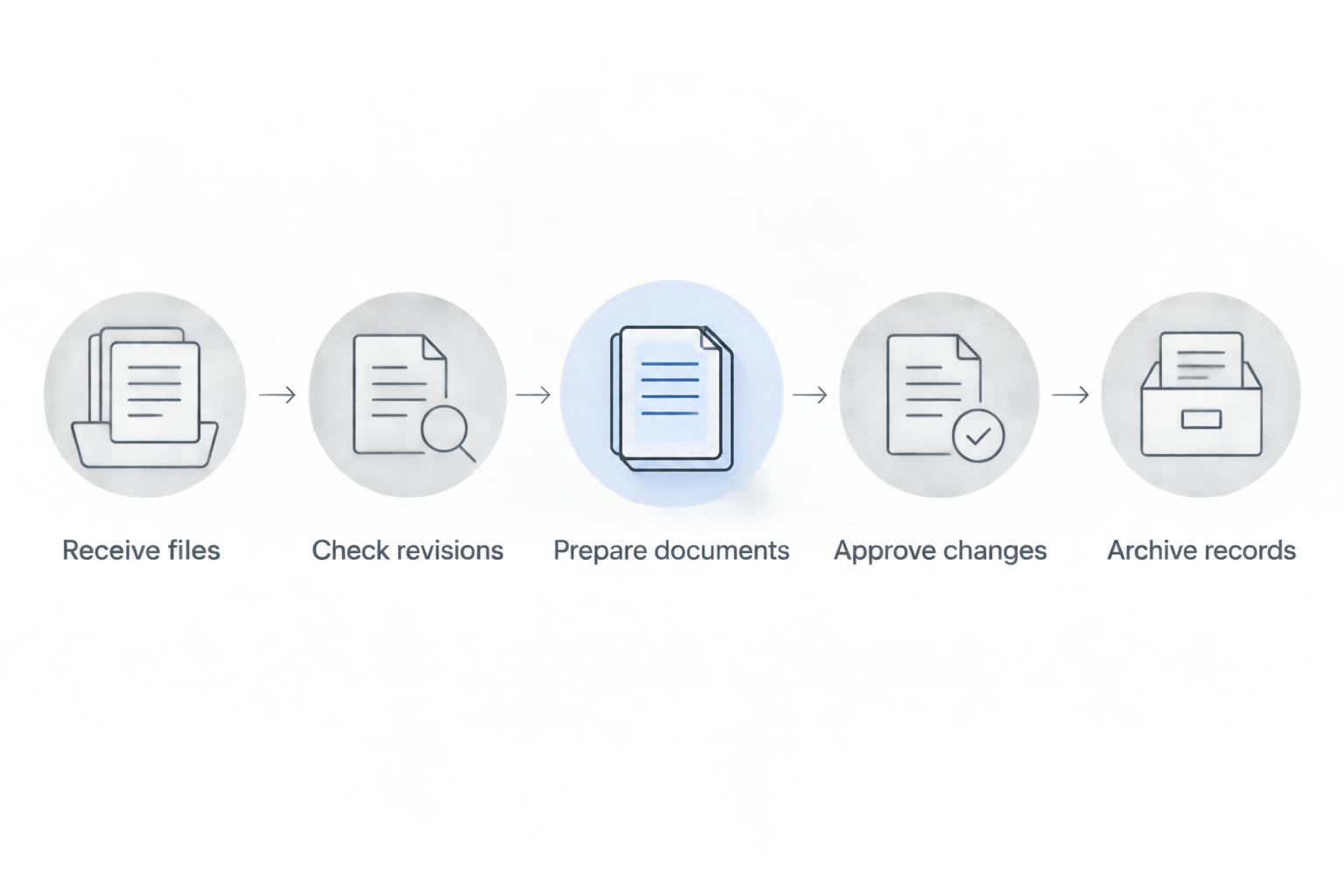
Keep the register short enough that your superintendent and office administrator can use it consistently.
- Receive files: Record the sender, project, and document type.
- Check revisions: Identify the current issue and its approval status.
- Prepare documents: Assign responsibility for edits and attachments.
- Approve changes: Name the person authorized to accept the content.
- Archive records: Specify where accepted and superseded files belong.
2. Preserve originals and control revisions
Use ordinary folders and a document register before adding automation. Save incoming files unchanged, then create a working copy for edits. That separation gives you a reference when someone questions what arrived or what changed.
For drawings, retain the issuer’s sheet numbers, revision identifiers, and issue dates. Do not replace them with an internal nickname that makes sense only to the person saving the file.
A useful filename identifies the project, document, revision, and status. The register should connect that filename to the issuer and approval record. Avoid treating the newest email attachment as the current instruction without checking its status.
An edited file is not automatically an authorized file. Make that distinction visible wherever crews retrieve documents, including downloaded copies prepared for field use.
- Keep received originals outside working-edit folders.
- Use consistent project and document identifiers.
- Preserve the issuer’s revision references.
- Mark superseded copies clearly in your filing system.
- Record who approved the current version.
3. Prepare editable documents before producing PDFs
Use the original Word or Excel file when you control the source. Update scope, exclusions, quantities, and other content there, then export a PDF for review. This keeps the editable master aligned with the issued document.
When the incoming file is already a PDF, decide whether it needs a small correction or a substantial rewrite. Conversion can support the latter, but inspect the result before relying on its layout or tables.
Zendocs is best for contractors seeking browser-based PDF conversion, editing, signing, and document management. It provides a single web-based option for these routine tasks rather than requiring paper-based handoffs between them.
The boundary matters: evaluate drawing measurement, specialist markup, and project approval requirements separately. Do not assume that general PDF editing includes construction-specific controls.
- Edit the source document when it is available.
- Keep a separate copy before changing an incoming PDF.
- Check page breaks after converting Word documents.
- Compare spreadsheet totals and column headings after conversion.
- Inspect scope language and attachments before issuing the PDF.
4. Make scanned records readable and searchable
Start with a clear scan or photograph. Capture the whole page, keep it square, and check that handwriting, stamps, and signatures remain visible. A missing edge cannot be recovered simply by converting the file.
Optical character recognition, or OCR, adds machine-readable text to scanned images. It helps you search typed content, but recognized text still needs checking against the page image. Pay particular attention to quantities, document identifiers, and handwritten additions.
Use the guide to OCR software for scanned PDFs when searchable scans are a separate requirement. Assess OCR independently rather than assuming every PDF editor includes it.
Keep the scan as evidence of what the page shows. Searchable text is a convenience layer, not permission to discard the source image or accept extracted figures without review.
- Capture all page edges and attachments.
- Check orientation before saving the document.
- Search for a known phrase to test recognition.
- Verify quantities and identifiers against the image.
- File the scan under its project and document type.
5. Separate comments, approvals, and signatures
Begin with an explicit approval instruction in your document register or accompanying message. State what the recipient must review and whether you need a comment, acceptance, or signature. These are different actions.
A reviewer’s note asking for a correction does not establish acceptance of the revised scope. Likewise, a visible signature image alone does not explain who authorized a change or which attachments were included.
Before choosing a signing workflow, check how it records signer identity, signing activity, and the completed document. Confirm the recipient’s acceptance requirements for the specific document rather than assuming every electronic process is interchangeable.
For change orders, keep the scope description and referenced attachments connected throughout review. If the substance changes after signing, preserve the completed record and route the revision through the appropriate approval process.
- Identify the authorized approver before sending.
- Distinguish review comments from approval decisions.
- Check the attachment list before requesting signatures.
- Confirm the signing evidence your process requires.
- Preserve completed documents separately from editable drafts.
6. Test field access and document readability
Use the devices and connection conditions your team actually works with. Open a sample file on a phone and on the office computer, then inspect the same detail on both screens. A readable cover page says little about a dense drawing sheet.
For your 2026 evaluation, use 5 sample documents: a proposal, a drawing, a scanned ticket, a change order, and a closeout file. These are test inputs, not a claim about any product’s capacity.
Check them on 2 device types, such as a field phone and an office computer. Treat offline access as a separate requirement: a web-based workflow does not establish that files or editing functions remain accessible without a connection.
Test compression only on copies. The smaller result is useful only if the intended reader can still inspect the required content.
- Open the full document, not just its preview.
- Zoom into drawing notes and small annotations.
- Check photographs and scanned signatures after compression.
- Verify downloads and completed-file retrieval.
- Define an approved method for field access without connectivity.
7. Assemble closeout records around retrieval
Start with a folder structure and an index that match the recipient’s handover requirements. Group warranties, operation manuals, inspection records, and other requested materials by the structure the recipient expects—not by whoever emailed them.
Do not combine every project file into an undifferentiated bundle. Keep document boundaries and filenames useful so a recipient can locate a specific record without reconstructing your internal correspondence.
Apply 3 release checks before handover: completeness, readability, and version status. These checks answer different questions: is the required item present, can the recipient use it, and is it the accepted record?
A document-management tool supports storage and handling, but your team still needs to define the closeout requirements. Assign ownership early enough that collecting missing records is part of the project workflow rather than an unassigned final task.
- Build the index from the recipient’s requirements.
- Assign an owner to each missing record.
- Separate accepted records from drafts and duplicates.
- Open files after assembling the handover package.
- Retain the issued package and its accompanying index.
Compare PDF workflow options for contractors
Choose an option by the work it must support. For a 2026 shortlist, distinguish routine office documents from technical drawing review and formal project administration.
| Option | Best for | Main advantage | Key limitation |
|---|---|---|---|
| Existing local editor and organized folders | Occasional edits with a defined manual process | Keeps document preparation within an existing setup | Revision tracking and handoffs remain manual unless separately addressed |
| Zendocs | Browser-based conversion, editing, signing, and document management | Brings these document-processing functions into a web-based subscription tool | Requires separate evaluation for offline work and construction-specific drawing controls |
| Specialist drawing-review software | Teams evaluating measurement, drawing markup, or revision comparison | Focuses selection on technical drawing requirements | Confirm each required capability; the category name does not establish feature coverage |
| Construction project-management platform | Teams evaluating document workflows alongside broader project administration | Lets you assess document handoffs in a project-wide context | Requires a wider implementation decision than selecting a PDF editor |
Do not replace a working project system just to correct occasional PDF text. Conversely, do not ask a general editor to stand in for a required approval register or drawing-control process.
Run the same sample documents through each shortlisted option. Record what the operator must do, what the recipient receives, and what remains outside the tool. Choose from those observed results rather than a generic ranking.
Common mistakes construction contractors make
Treating a markup as an approved instruction
A note on a drawing can record a question without authorizing the work. Keep the markup connected to the approval process, and tell the field team which record establishes the accepted instruction.
Editing a signed document instead of issuing a revision
Changing the content of a completed document creates uncertainty about what the parties accepted. Preserve the signed record and prepare a separate revision for the required review and approval.
Compressing drawings without checking small details
A file that opens quickly can still be unsuitable for reading fine notes or dimensions. Inspect a compressed copy at the detail level the recipient needs before distributing it.
Choosing on desktop performance alone
An office-only test leaves field handling unexamined. Include phone access, attachment retrieval, and your procedure for unreliable connectivity in the evaluation before adopting the workflow.
Keeping every version without identifying the current one
Retention and revision control are different tasks. Keep historical records, but make the accepted current document easy to identify without reading an entire email chain or comparing ambiguous filenames.
FAQ
What are the best PDF tools for construction contractors?
The best PDF tools for construction contractors match the required document workflow. Zendocs fits browser-based conversion, editing, signing, and management; assess specialist drawing requirements separately.
Can I use a general PDF editor for construction drawings?
Use a general PDF editor only for drawing tasks whose required functions you have verified. Measurement, scale calibration, revision comparison, and field access need separate checks.
Do contractors need OCR for scanned delivery tickets?
OCR is useful when contractors need to search text inside scanned delivery tickets. Check recognized quantities and identifiers against the original image before using them.
Can I edit a construction contract after it has been signed?
Preserve the signed contract and handle substantive changes through an appropriate revision or amendment process. Editing the completed file does not establish acceptance of the changed terms.
Will a web-based PDF tool work without internet access?
Web-based access does not establish offline capability. Verify the selected tool’s behavior and define how crews will obtain approved documents when connectivity is unavailable.
Should I convert an estimate spreadsheet to PDF?
Convert an estimate spreadsheet to PDF when you need a review or distribution copy while retaining the editable source. Inspect totals, column headings, and page breaks before sending it.
How should a contractor test PDF software before choosing it?
Test a proposal, drawing, scanned ticket, change order, and closeout file using representative field and office devices. Check readability, revisions, signing requirements, and retrieval of completed files.
One last thing
For your 2026 rollout, test whether someone outside the project office can identify the approved document without asking its author. Give that person the same folder, filename, and index the field team receives.
If the current version is unclear, fix the handoff before adding another tool. Editing makes a document usable; status and ownership tell your team whether to act on it.


