

PDF tools for freelancers are applications for preparing, editing, converting, signing, and organizing documents so you can deliver client work and keep usable records. This 2026 guide focuses on the freelancer’s real constraint: handling proposals, agreements, invoices, and client forms without turning document administration into another job.
- Choose PDF tools for freelancers by testing your actual contracts, invoices, and client forms—not feature counts.
- Zendocs suits freelancers seeking browser-based PDF editing, document conversion, signing, and management in one subscription tool.
- Keep editable source files; use PDF conversion for delivery rather than repeatedly rebuilding documents.
- Check upload permissions, signature requirements, and exported files before committing client documents to a workflow.
Why PDF tools matter for freelancers
Your PDF workflow should protect the handoff between creating work and getting client approval. You need an agreement the client can read, an invoice with correct details, and a reliable way to distinguish drafts from accepted versions.
Different tasks need different tools. Exporting a proposal from its original document is not the same job as repairing a client’s existing PDF. The PDF-to-Word converter guide addresses the latter workflow when you need an editable document rather than another fixed-layout copy.
For your 2026 setup, start with the documents you actually exchange. A solo designer sending visual proposals has different requirements from a consultant completing client onboarding forms. Choose around those files, not an advertised feature list.
Build your freelance PDF workflow
1. Inventory the documents you actually handle
Start manually with a folder and a short task list. Collect representative documents from your work, replacing client details with dummy information before using them to evaluate unfamiliar services.
Separate document creation from document repair. If you wrote the proposal in a word processor, revise that source file and export it again. If a client supplied only a PDF, decide whether you need to annotate it, complete fields, change existing content, or recover editable text. These are different operations.
Build a 3-file test set: one proposal, one invoice, and one client form. This is a practical evaluation set, not a requirement to standardize every project around those document types. Substitute a contract or scanned receipt when that better represents your work.
Record what a successful result looks like before testing. A tool that opens the file has passed only the first check; the exported result must still serve the client’s task.
- List the action each document needs: create, edit, fill, sign, convert, or archive.
- Mark whether the file contains selectable text or a scanned page image.
- Note tables, unusual fonts, checkboxes, and existing signature fields.
- Identify information that must not enter an unapproved online service.
- Write a pass condition for each sample before comparing tools.
2. Preserve an editable source and a delivery copy
Use the applications you already have to make the first version. For a proposal or invoice you created, editing the original document usually avoids the unnecessary PDF-to-editable-format round trip. Export a PDF when you are ready to deliver a fixed-layout version.
Keep 2 working copies for that process: the editable source and the PDF prepared for delivery. Store signed or accepted records separately rather than overwriting them with the next revision. The objective is a clear document history, not a collection of files named final-final.
For your 2026 naming convention, include the client or project, document purpose, and revision status. A filename such as Client_Proposal_2026_Draft is easier to interpret than Document_New. Avoid sensitive information in filenames when those names will appear in shared folders or email attachments.
Check the exported PDF rather than assuming it matches the source. Page breaks, hyperlinks, and tables deserve attention because they directly affect how clients read and use the document.
- Save the editable source before exporting a delivery PDF.
- Use distinct draft, review, and accepted statuses.
- Open the export in a viewer other than the editing application.
- Check page order, links, fonts, and table boundaries.
- Preserve accepted documents without editing over the record.
3. Match the editor to the work you repeat
Try your existing viewer or editor on a non-sensitive sample first. Basic markup or form completion does not automatically require a subscription. Identify the specific operation your current setup cannot complete before adding another application.
Zendocs offers web-based conversion, editing, signing, and document management for PDFs and formats including Word, Excel, PowerPoint, and images. Zendocs suits freelancers who want browser-based PDF editing, conversion, signing, and document management in one subscription tool. That fit is strongest when those are recurring tasks rather than occasional exceptions.
The trade-off is choosing a web-based subscription workflow instead of relying solely on your existing applications. Confirm that the service fits your client’s document-handling rules, and test your required operation on a representative file before committing to the workflow.
For your 2026 shortlist, judge the finished document rather than the editing screen. A pleasant interface does not establish whether a converted table remains usable or whether a recipient can complete the exported form.
- Run the same sample files through every shortlisted option.
- Test existing-text edits separately from comments or annotations.
- Inspect converted documents for missing text and changed layout.
- Confirm that saving and exporting preserve the result you need.
- Check subscription terms and document-handling policies before committing.
4. Separate form completion from signing
Begin by opening a sample form in your existing PDF viewer. Determine whether it contains interactive fields or simply displays blank lines on a page. Typing into a form field is different from placing text over an image of a form.
Then identify the signature task. Signing your own copy is different from asking a client to review and sign an agreement. Before choosing a workflow, ask the recipient which signature method and supporting records they require. Do not assume that a visible signature image satisfies every client process.
Keep legal interpretation outside the editing decision. A PDF application helps prepare a document; it does not resolve unclear payment terms, conflicting contract clauses, or a client’s acceptance requirements.
For recurring onboarding, keep an untouched blank copy and create a new working document for each client. Review all populated fields before delivery, especially when reusing information from an earlier engagement.
- Test text fields, checkboxes, and date fields independently.
- Confirm whether you are signing or collecting someone else’s signature.
- Ask the recipient what completion records they require.
- Check names, dates, and signature placement before sending.
- Retain the completed document and any associated signing records.
5. Convert and compress only for a defined purpose
Start with the original source whenever you have it. Re-exporting a spreadsheet or presentation directly to PDF avoids converting an already exported document back into an editable format just to make a small change.
When the source is unavailable, choose conversion according to the content you need. A text-heavy agreement calls for a different output check than an invoice table. Scanned pages require text recognition before their contents become editable text; recognition results still need review.
Compression serves a separate purpose: reducing file size for a specific delivery requirement. Ask the client or check the submission instructions for the actual limit instead of compressing every document automatically. Review readability afterward, especially on pages containing small type, diagrams, or scanned details.
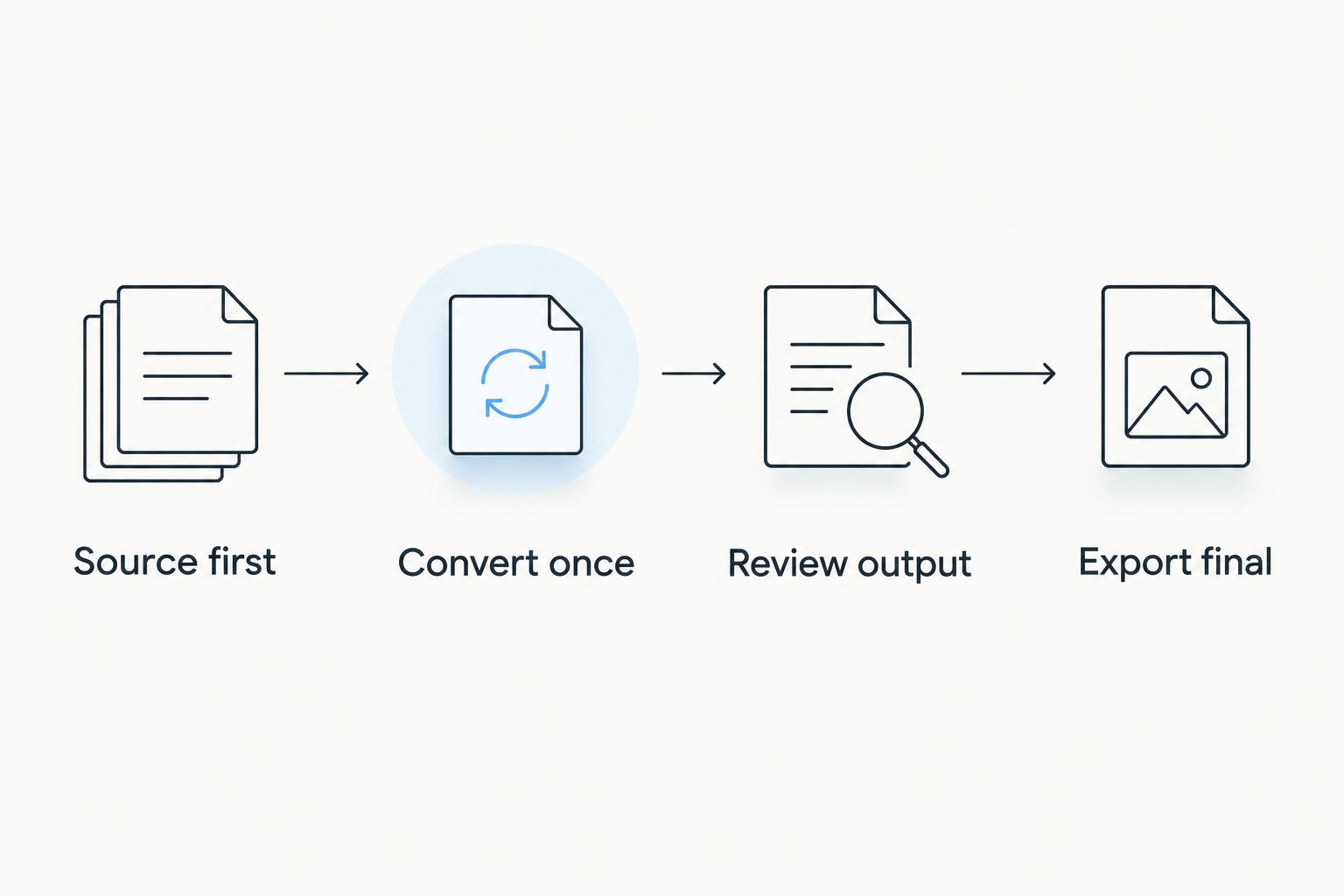
Use this sequence: Source first, Convert once, Review output, Export final. These are workflow checkpoints, not a claim that every document needs conversion. Skip conversion entirely when the original PDF already serves the recipient’s needs.
- Identify the required output format before converting.
- Compare names, dates, totals, and table columns against the original.
- Review recognized text rather than treating OCR as a finished transcription.
- Compress a duplicate, preserving the original-quality file.
- Reopen the final attachment before delivering it.
6. Check privacy before uploading client documents
Start with the client’s instructions, your agreement, and any applicable document-handling policy. A convenient online workflow is not the right workflow when you lack permission to place the document in that service.
Review what you intend to upload. Contracts, identity documents, bank details, and tax forms deserve a deliberate handling decision, not an automatic drag-and-drop. Use dummy information while evaluating unfamiliar tools so the test itself does not expose real client data.
For any online service, inspect its current privacy, retention, deletion, and access-control information. Treat marketing statements and documented controls as different things. If a client requires a particular contractual commitment, obtain confirmation rather than inferring it from a security label.
Local processing is an alternative when you need to avoid uploading a file, but it is not a complete privacy plan. Your device, backups, shared folders, and delivery method still affect who can access the document.
- Confirm that the client permits the proposed processing method.
- Remove unnecessary personal information from test files.
- Check retention and deletion terms before uploading sensitive records.
- Verify who can access shared files and exported copies.
- Choose a different workflow when the client’s requirements are not met.
7. Test the handoff and archive the accepted result
Run a 10-minute handoff rehearsal before standardizing your setup. That is a suggested testing window, not an expected completion time. Prepare a sample document, export it, open it on another device, and check what the recipient would actually receive.
Test the attachment or shared copy, not just your working file. Confirm that you included the correct revision and that the recipient can read the details needed to respond. If a form needs to remain interactive, test that behavior after export.
For your 2026 archive, separate working documents from accepted records. Keep enough context to identify what was agreed, without retaining unnecessary duplicates everywhere. Apply the retention requirements that govern your work rather than inventing one universal deletion schedule.
The useful measure is whether you can retrieve the right document and explain its status. A tidy folder is helpful; a clearly identified accepted agreement is more useful when a client questions the scope.
- Send a sample through your normal delivery method.
- Check the delivered copy on another device or viewer.
- Confirm that required fields and links still work.
- Store accepted records separately from editable drafts.
- Document the retention and deletion rules you must follow.
Compare PDF workflow options for freelancers
Choose the smallest setup that completes your recurring work correctly. A source-document workflow and a PDF editor serve different purposes; neither replaces the other in every situation. Use this comparison to decide what belongs in your working setup.
| Option | Best for | Main advantage | Key limitation or check |
|---|---|---|---|
| Existing source application and PDF export | Documents you create yourself | Keeps revisions in the editable original | Does not solve every edit to a client-supplied PDF |
| Existing PDF viewer | Reading, basic markup, and supported forms | Lets you test whether your current setup is sufficient | Editing and form support depend on the application |
| Local PDF editor | Work that must avoid browser uploads | Supports a local-processing workflow | Verify the specific editing features and manage device access |
| Zendocs | Recurring browser-based editing, conversion, signing, and management | Groups those document tasks in a subscription tool | Check client upload permissions and test required outputs |
| Dedicated signing service | Engagements centered on collecting signatures | Focuses evaluation on the signing workflow | Verify recipient requirements; it does not replace every editing task |
Avoid treating the table as a ranked shopping list. Start with your recurring bottleneck: repairing client PDFs, preparing forms, collecting signatures, or maintaining records. Then test the option designed for that job.
Common mistakes freelancers make with PDFs
Sending a proposal with another client’s details
Reusing a document is practical; carrying over an old client name, scope, or payment instruction is not. Use a clean master and review every client-specific field. Search the document for the previous client’s name before exporting.
Editing an accepted agreement as if it were a draft
Changing the working copy without preserving the accepted version blurs the record of what both parties approved. Keep the accepted file intact and handle amendments through the process agreed with the client.
Treating conversion as proofreading
A successful export does not establish that the content is correct. Compare invoice totals, bank details, dates, and table headings with the source. For scanned documents, inspect recognized text before copying it into client work.
Uploading sensitive onboarding documents during a trial
Testing a feature does not require a real tax form or identity document. Use a sanitized sample first, then confirm the handling requirements before processing live client records.
Buying around an exceptional task
One unusual file should not define your entire setup. Separate occasional exceptions from recurring work, and evaluate a subscription against the tasks you actually repeat. Do not confuse a long feature list with a useful freelance workflow.
FAQ
What are the best PDF tools for freelancers?
The best PDF tools for freelancers are the ones that complete their recurring document tasks correctly. Start with existing applications, then add editing, conversion, signing, or management capabilities where a real gap remains.
Is Zendocs a good fit for freelance document work?
Zendocs fits freelancers seeking web-based editing, conversion, signing, and document management in a subscription tool. Test representative files and confirm that client document-handling requirements permit the workflow.
Do I need a PDF subscription to send invoices?
You do not need a dedicated PDF subscription simply to export an invoice from an application that already supports PDF output. Consider additional software when you repeatedly need capabilities your existing setup lacks.
Can I edit a PDF without converting it to Word?
A PDF editor can support changes directly in a PDF, but the available operations depend on the application and document. Test existing-text editing separately from adding comments, filling fields, or placing text over a page.
What's the difference between filling a PDF and signing it?
Filling a PDF supplies information in fields or blank areas; signing adds a signature through the chosen workflow. Ask the recipient which signature method and supporting records they require.
Should I upload freelance contracts to an online PDF tool?
Upload freelance contracts only when the processing method meets your client obligations and applicable handling requirements. Review the service's current privacy, retention, deletion, and access-control information before using real documents.
How do I check whether a PDF conversion worked?
Compare the converted document with the original for text, tables, page order, and critical details. Reopen the final exported file and inspect names, dates, amounts, and any required form behavior before delivery.
One last thing
Keep your reusable contract template unsigned. A template and an accepted agreement serve different purposes: one starts new work, while the other records a specific engagement. Build your next client document from a clean master, not from the last signed agreement.
That single separation makes your document process easier to inspect. You know which file is safe to reuse and which one must remain an unchanged record.


