

PDF tools for insurance agents are document applications for preparing, editing, converting, and signing insurance paperwork with the aim of completing accurate client files. This 2026 guide explains how to choose a setup that preserves carrier forms, separates working drafts from signed records, and fits your agency’s handling rules.
- Choose PDF tools for insurance agents around carrier requirements, document accuracy, and approved file handling.
- Zendocs fits agents seeking browser-based PDF editing, document conversion, signing, and management in a subscription tool.
- Test representative insurance forms before choosing a PDF editor or e-signature workflow.
- Keep signed records unchanged; verify every converted document against its source.
Why this matters
The right PDF workflow preserves the document’s meaning, not just its appearance. An application that opens successfully still needs checks for completed fields, readable attachments, and the correct signature version. These checks belong before submission, not after a carrier requests corrections.
Zendocs offers browser-based PDF editing, conversion, signing, and document management. Those functions address document-processing tasks; they do not establish that a particular carrier accepts an output or that your agency permits uploading client information.
Start your 2026 selection with the work you actually handle. A renewal comparison, an application, and a signed authorization need different checks even when all arrive as PDFs.
Why PDF tools matter for insurance agents
Insurance paperwork connects clients, agency staff, carriers, and other recipients. Your task is to keep the information consistent as documents move between those parties. A convenient editing feature is useful only if the resulting file remains accurate and acceptable to its recipient.
Three distinctions should shape your choice:
- Carrier-controlled forms: Completing a form is different from changing its wording or layout. Use the required version and follow the recipient’s instructions.
- Working documents: Quote comparisons and internal summaries need clear source references so colleagues can verify what you changed.
- Executed records: A signed document needs a defined storage and correction process, not further informal editing.
For your 2026 requirements, name the task before naming the software. If the task is entering information into an existing form, test that form. If it is comparing policy information in a spreadsheet, test conversion accuracy separately. A successful result in one workflow does not validate the other.
How to build your insurance PDF workflow
1. Map your document handoffs
Start manually with a simple worksheet. List each document, who supplies it, who changes it, who signs it, and where the final record belongs. No additional software is necessary to identify those handoffs.
Use 1 sample packet from a representative workflow, with client information removed or replaced. Follow it from intake to storage and mark every point where someone downloads, renames, edits, or sends a copy. This turns a vague software search into a specific set of requirements.
Separate necessary handoffs from habits. If colleagues exchange attachments because nobody knows where the current version lives, adding another editor will not resolve the ownership problem. Decide who controls the working copy before testing editing features.
- List the document types you receive and produce.
- Identify the person responsible for each handoff.
- Record the required recipient and submission method.
- Mark which files need signatures rather than edits.
- Assign a final storage location to each completed record.
2. Set upload and handling rules
Before trying an online tool, check your agency’s existing policies and the relevant carrier requirements. The manual route is a written approval checklist maintained by the person responsible for document handling. Test with synthetic information until the intended workflow is approved.
For a 2026 software review, ask specific questions about file access, retention, deletion, and administrative controls. Do not treat a browser interface, a password field, or the ability to sign as proof of suitability for sensitive information.
Evaluate the workflow, not a general security label. If a requirement calls for restricted sharing, establish exactly how recipients gain access and how access ends. If the available documentation does not answer a required question, resolve it before uploading live client files.
- Confirm whether external document uploads are permitted.
- Identify the information that requires additional restrictions.
- Review documented retention and deletion practices.
- Check who can access uploaded and completed files.
- Record approval before testing with live documents.
3. Match editing and conversion to the task
Use an approved viewer or the original authoring application first when it can complete the task without conversion. For internal material you created, editing the source file and exporting a new PDF avoids treating the PDF as the master document.
When the source is unavailable, distinguish text editing from format conversion. Editing a page is not the same task as turning a table into a spreadsheet. Likewise, a scanned page needs text recognition before its contents can be treated as editable text; confirm that capability separately rather than assuming every editor includes it.
Zendocs is best for insurance agents seeking browser-based PDF editing, conversion, signing, and document management in a subscription tool. Its stated functions fit that scope, but carrier acceptance and agency-specific requirements still need separate verification. Do not assume features such as text recognition, redaction, or carrier integration.
- Edit original source documents when you control them.
- Preserve carrier wording unless changes are authorized.
- Test Word conversion against the original page layout.
- Check spreadsheet output cell by cell where accuracy matters.
- Verify every required capability before choosing a tool.
4. Validate the finished document
Start with a side-by-side review of the source and output. For a small file, manual checking is a practical starting point. A search function helps locate names and policy references, but it does not replace reviewing tables, page breaks, and attachments.
Set 3 review checkpoints: after editing, after conversion, and before sending. These are workflow recommendations, not performance benchmarks. They separate the moment a change occurs from the moment the document leaves your control.
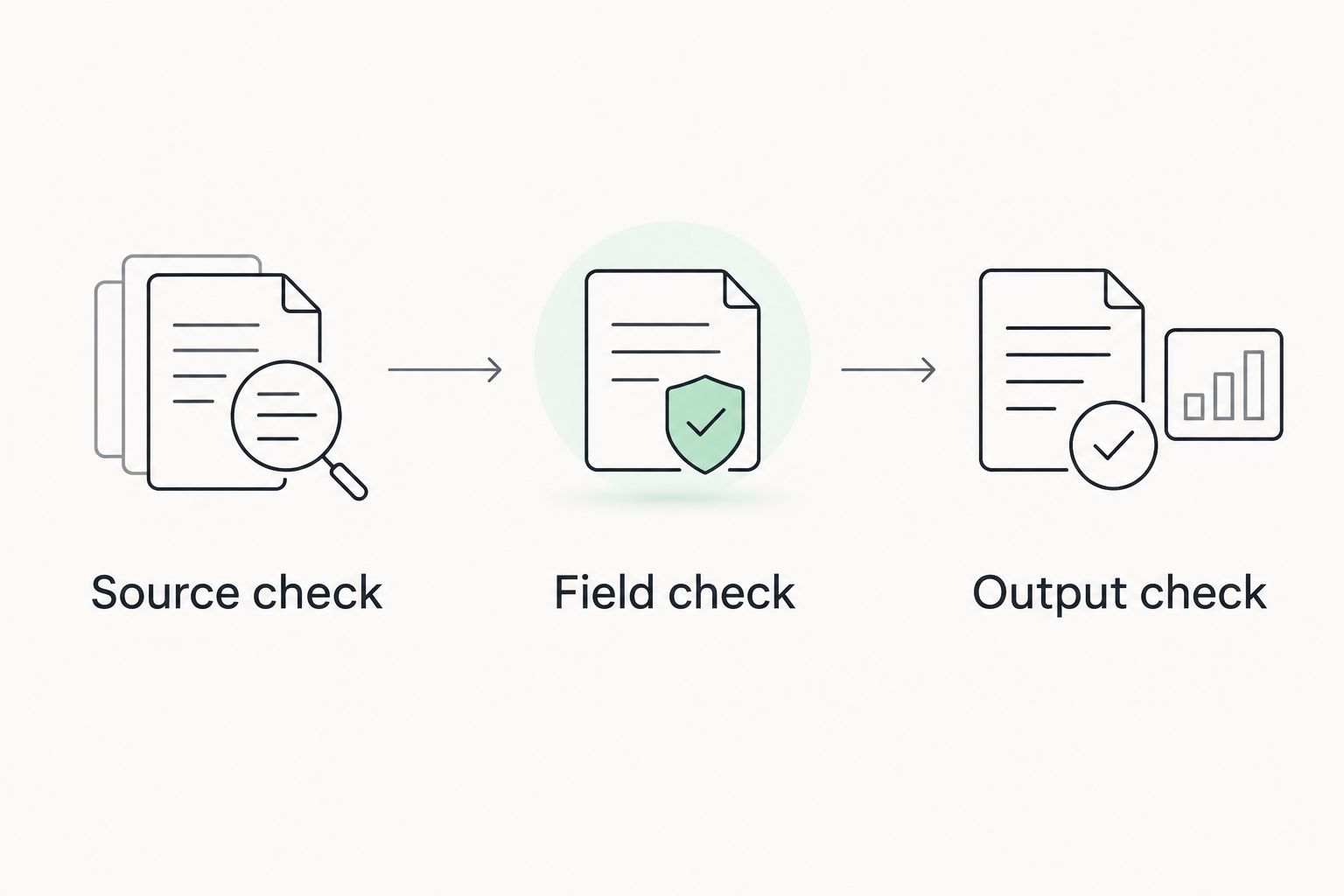
Use a repeatable sequence: Source check, Field check, Output check. The source check establishes that you started with the intended document. The field check confirms entered information. The output check verifies what the recipient will actually receive.
- Source check: Confirm the form version and source document.
- Field check: Review names, dates, policy references, and selections.
- Output check: Reopen the exported file in a separate viewing session.
- Check page order, attachments, and blank pages.
- Confirm that text is readable without excessive enlargement.
5. Separate signing from editing
Begin with the signature method specified by the recipient. If an existing approved process works, document it before replacing it. A signature feature is useful only when it supports the required signer, document, and acceptance process.
For your 2026 signing workflow, distinguish adding a visible signature from managing a signature transaction. Ask what evidence the recipient requires and what the selected tool provides. Do not assume that placing a signature image creates an audit record, verifies identity, or satisfies every signing requirement.
Keep 2 separate copies when preparing a signing packet: the editable working document and the completed signed record. This is an organizational recommendation, not a retention rule. If a signed record needs correction, follow the approved correction process rather than silently changing its contents.
- Confirm the recipient’s accepted signature method.
- Verify names, roles, and signature locations before sending.
- Determine what signing evidence must accompany the record.
- Keep the completed signed file separate from the draft.
- Route corrections through the approved process.
6. Standardize storage and repeat the test
Start with a documented folder and naming convention in your approved storage system. You do not need a new document platform to define which file is current, who owns it, or where signed records belong.
Use descriptive names that distinguish working drafts from completed records without exposing unnecessary personal information. For example, a neutral internal reference plus document type and status is more useful than a filename such as final-revised-new. Follow your agency’s rules for dates and identifiers.
Document management features deserve a separate test from editing. Zendocs includes document management in its stated scope; confirm the particular controls you need rather than assuming version history, shared permissions, or retention automation. Repeat the workflow with another representative document before making it your default.
- Define a consistent naming convention for working documents.
- Separate drafts, submitted files, and signed records.
- Assign responsibility for filing the final copy.
- Apply the agency’s approved retention schedule.
- Test retrieval as well as upload and editing.
Compare your PDF workflow options
Choose the option that handles the task without introducing unnecessary handoffs. The comparison below describes workflow fit, not a certification of any tool’s suitability for insurance records.
| Option | Best for | Main advantage | Key limitation |
|---|---|---|---|
| Existing approved viewer and manual checks | Occasional form completion | Keeps straightforward work within an established process | Manual checking and file organization remain your responsibility |
| Original authoring application | Internal documents with an available source | Lets you change the source before exporting | Does not solve editing when only a PDF is available |
| Zendocs | Browser-based editing, conversion, signing, and management | Offers these document functions in a subscription tool | Specific controls and carrier acceptance require verification |
| Dedicated signing workflow | Documents with defined signature and evidence requirements | Keeps signing requirements central to the process | Does not necessarily address conversion or broader editing needs |
Choose the smallest approved setup that completes the whole workflow. A browser-based subscription fits a need for online document processing; an existing viewer fits a narrower task that it already handles. Neither choice removes the need to inspect the final file.
Do not replace a working system solely to consolidate applications. First establish which handoff or task the replacement improves, then test that exact improvement with representative documents.
Common mistakes insurance agents make
Changing carrier language while completing a form
Filling a field and rewriting a condition are different actions. Preserve the supplied language and resolve unclear instructions with the appropriate recipient. An editor’s ability to change text is not authorization to change the form.
Treating converted tables as verified information
A spreadsheet that looks organized still needs comparison with its source. Check headings, row associations, decimal placement, and information that crosses page boundaries. Do not use an unchecked conversion as the basis for a client-facing comparison.
Assuming a signature feature meets every requirement
A visible signature does not answer questions about identity, evidence, or recipient acceptance. Define those requirements first. Then assess the signing process against them rather than choosing by the appearance of the signature field.
Storing completed records beside editable drafts
Unclear status invites the wrong attachment to be sent or the wrong version to be reviewed. Separate working documents from completed records and give each an obvious status. Make the final storage step part of the workflow, not an optional cleanup task.
Testing only with an easy document
A clean text page does not represent a packet containing tables, checkboxes, scans, and attachments. Use representative examples without live personal information. Your 2026 review should include the document characteristics that create actual checking work for your team.
FAQ
What are the best PDF tools for insurance agents?
The best PDF tools for insurance agents are the ones that pass the agency’s document-handling checks and complete its actual workflows. Zendocs fits agents seeking browser-based editing, conversion, signing, and document management; verify required controls and recipient acceptance separately.
Can I use an online PDF editor for client insurance documents?
Use an online PDF editor for client insurance documents only through an approved handling process. Review upload permissions, access, retention, deletion, and applicable recipient requirements before using live client information.
Should I edit a carrier application or convert it to Word?
Complete the carrier’s required application in its accepted format rather than converting it unnecessarily. If a conversion is needed for an authorized task, compare the result with the original and preserve the required wording and structure.
Is adding a signature image the same as an electronic signing workflow?
Adding a signature image does not by itself establish the identity checks or evidence required by a recipient. Confirm the accepted signing method and the supporting record before choosing a process.
How do I check a PDF converted to Excel?
Check the converted spreadsheet against the original PDF, including headings, row relationships, amounts, and information spanning pages. Treat the spreadsheet as unverified until that review is complete.
Can I change an insurance document after it has been signed?
Use the approved correction process instead of silently editing a completed signed record. Preserve the completed document and establish whether a corrected document needs new signatures.
How should an insurance agency test PDF software in 2026?
Test PDF software with representative documents containing synthetic or appropriately removed client information. Check editing, conversion, signing requirements, export accuracy, and final retrieval before approving routine use.
One last thing
Test the recipient’s copy, not just the editor’s preview. Close the editing session, reopen the exported attachment, and inspect the exact file you intend to send. That final check separates successful editing from a completed handoff.


