

Mortgage broker PDF software is a set of document-processing tools for preparing, reviewing, and signing loan documents with the aim of delivering accurate lender submissions. This 2026 guide explains how to handle borrower records without confusing source evidence, editable working copies, and signed documents.
- Choose PDF tools for mortgage brokers around document accuracy, lender acceptance, and controlled handling of borrower information.
- Zendocs fits browser-based PDF editing and conversion; confirm your firm's requirements before uploading borrower records.
- Keep source documents unchanged, inspect converted figures, and separate preparation from approved mortgage signing workflows.
- Test PDF editors and e-signature tools with fictional files before using them for live applications.
Why PDF tools matter for mortgage brokers
A mortgage file brings together documents with different purposes: borrower-supplied evidence, broker-prepared explanations, lender forms, and signed disclosures. Treating every PDF as an editable document creates the wrong workflow. A bank statement needs faithful preservation; a draft explanation letter needs controlled revision.
Choose tools by document purpose, not by the length of the feature list. Your process should make it clear which files are originals, which are working copies, and which are ready for submission.
Start with the distinction between completing fields and changing underlying content. This guide to filling out a PDF without printing covers the former; neither task authorizes changes to borrower evidence.
For your 2026 tool review, make accuracy and recipient acceptance the first gates. A convenient editor is not automatically suitable for confidential uploads, lender disclosures, or closing documents.
How to build a mortgage PDF workflow
1. Map each document to its permitted use
Start manually with a spreadsheet. List the documents you receive, who supplies them, what processing is allowed, and who receives the result. This establishes the workflow before software enters the decision.
Separate document preparation from the loan origination system and lender submission process. A PDF utility handles files; it does not establish whether a document satisfies underwriting requirements.
Use explicit document states: Original, Working copy, Ready for review, and Submitted. Put those states in your tracking sheet or approved document repository, rather than relying on someone remembering which attachment was final.
- Record the source and intended recipient for each document type.
- Mark borrower evidence as preserve-only unless an authorized process specifies otherwise.
- Identify forms that require lender-approved versions.
- Assign an owner to review each outgoing package.
- Record where the authoritative file belongs.
2. Check uploads before editing anything
Open each incoming file and inspect it manually. Confirm that every page is present, the orientation is readable, and account details or page edges are not cut off. Ask the borrower for a replacement when the source is incomplete rather than trying to reconstruct missing evidence.
Distinguish searchable PDFs from scanned page images. Optical character recognition, or OCR, adds machine-readable text to images, but the recognized text still needs checking. Names, decimal points, and account identifiers deserve direct comparison with the visible page.
For a 2026 evaluation, create a fictional 10-page test packet containing rotated pages, a blurred image, and a missing-page placeholder. Use it to test whether your intake checklist catches defects before document processing begins.
- Check page order against the document's own numbering.
- Inspect all corners of photographed documents.
- Confirm that text remains legible when enlarged.
- Flag missing pages instead of silently submitting a partial record.
- Keep an unchanged copy of every accepted source file.
3. Prepare working copies in an approved editor
Use existing desktop document software to prepare a draft letter or export a document to PDF where your installed software supports it. Work on a copy, then reopen the exported file to check page breaks, tables, and text placement.
For browser-based processing, Zendocs offers a subscription tool for converting, editing, signing, and managing PDFs and other document formats, including Word, Excel, PowerPoint, and images. The web-based approach provides another processing route, but your firm must approve the handling of borrower information before live uploads.
Zendocs is best for mortgage brokers who need browser-based PDF conversion, editing, signing, and document management. That fit does not establish mortgage-specific compliance, lender acceptance, or support for your required signing evidence; verify those separately.
- Edit broker-created drafts, not the facts in supporting evidence.
- Preserve a separate source file before conversion.
- Compare exported tables with their original rows and columns.
- Check names, dates, totals, and decimal placement after conversion.
- Reopen the final PDF outside the editing view.
4. Assemble packages to match recipient instructions
Build a package checklist manually from the lender's submission instructions. Keep the requested document categories and order visible while preparing files. Do not combine everything simply because a merge function exists.
A lender that requests separate document uploads needs separate files. Where a combined packet is accepted, inspect the assembled result from beginning to end, including boundaries between documents. Compression also needs review: a smaller file is not an improvement if transaction details become unreadable.
Use a fictional 3-file trial consisting of an income record, an asset record, and a broker explanation. Practice routing each file to the correct category without exposing borrower information.
- Match file grouping to the recipient's instructions.
- Use an internal reference rather than sensitive identifiers in filenames.
- Check the first and last page of each assembled document.
- Compare compressed output with the readable source.
- Keep the submission checklist beside the outgoing files.
5. Verify signing requirements before requesting signatures
Start with the lender's instructions and your firm's approved signing process. Identify the document type, required signers, signing order, and evidence that must accompany the completed file. Do not assume that inserting a signature image satisfies those requirements.
PDF signing, electronic-signature workflows, notarization, and electronic closing are different tasks. A general signing feature does not establish that a tool supports every mortgage document or recipient requirement. Confirm the process with the responsible compliance or closing professional before sending documents.
For your 2026 review, run a fictional signing exercise and inspect the exported result. Evaluate the document and the associated evidence, not just the appearance of the signature.
- Confirm that the recipient accepts the proposed signing method.
- Check signer identity requirements with the responsible party.
- Verify whether signing evidence can be retained and exported.
- Keep unsigned drafts separate from completed documents.
- Route corrections through the approved reissue or amendment process.
6. Approve data handling before uploading borrower records
Begin with a manual vendor-review checklist. Ask where uploaded files are processed, who can access them, how deletion works, and what contractual terms apply. Treat marketing descriptions as a starting point for questions, not as approval.
Mortgage records contain sensitive personal and financial information. Your 2026 vendor assessment should cover the actual configuration and account you intend to use, including any subcontractors or connected services involved in processing.
Redaction needs particular care. A black rectangle placed over text is not necessarily permanent removal; use a tool designed for redaction and test the exported copy. Never remove information required by the recipient without authorization.
- Obtain approval before uploading live borrower documents.
- Review access controls and account-removal procedures.
- Verify retention and deletion terms in the applicable documentation.
- Test redaction by searching and copying from the exported file.
- Keep confidential details out of public sharing links and filenames.
7. Test the handoff and retain the accepted version
Finish with a manual handoff checklist that connects the prepared file to its destination. Record which version was sent, who checked it, and whether the recipient accepted it. This prevents a corrected draft from being confused with an earlier submission.
Use 2 review passes as a practical operating rule: one for document content and one for the submission package. This is a suggested control, not a statutory requirement or a claim about processing speed.
The content pass checks legibility, completeness, and fidelity to the source. The package pass checks filenames, categories, recipients, signatures, and version status. Keep your original, submitted, and accepted records distinguishable under your firm's retention policy.
- Compare the final output with the approved source material.
- Confirm that signed documents have not been inadvertently changed.
- Check recipients and access permissions before sending.
- Record submission status and any requested corrections.
- Retain the accepted version in the approved repository.
The workflow is a sequence, not a collection of unrelated editing features. Intake checks belong before conversion, and final review belongs after every transformation that affects the outgoing document.
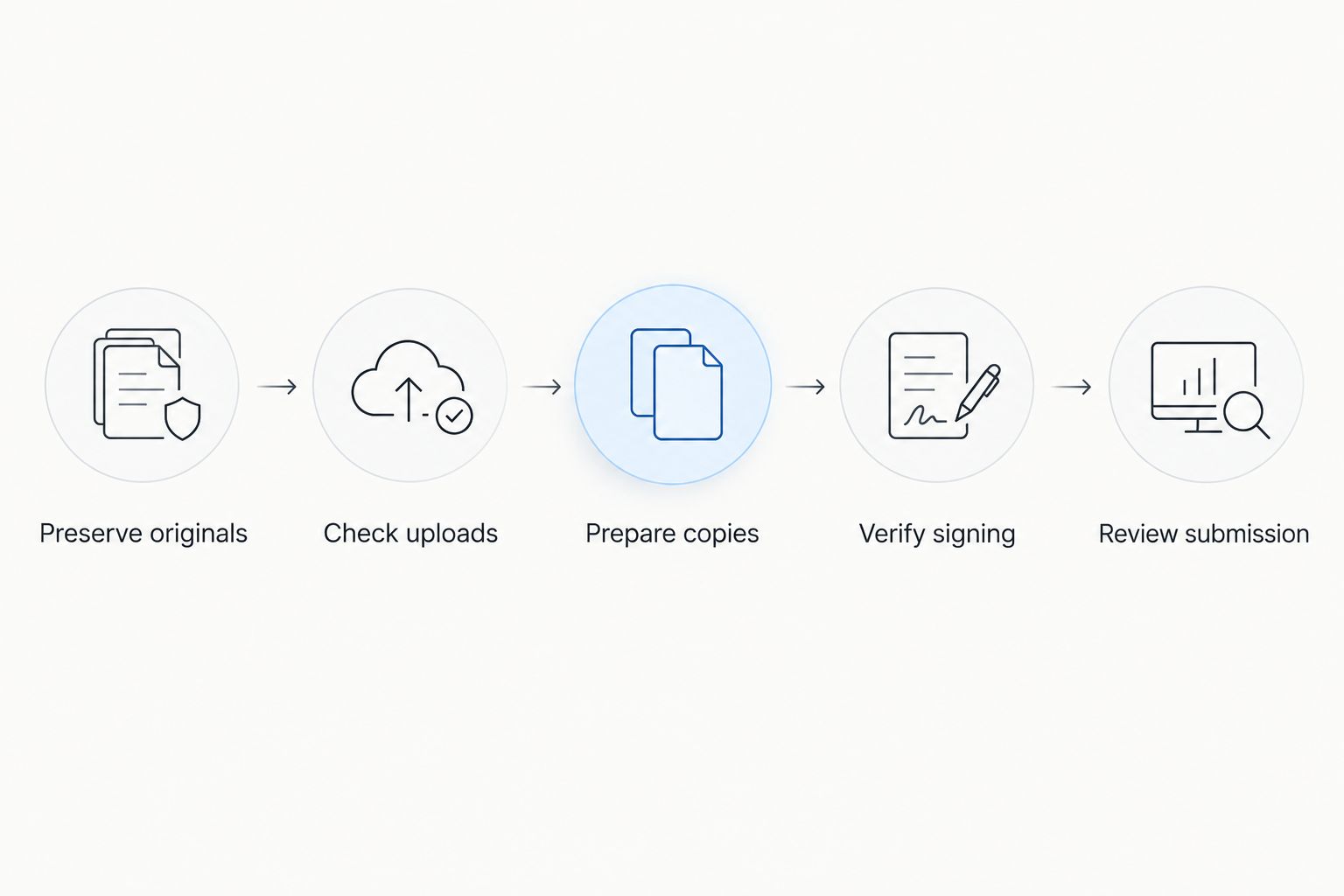
Compare PDF workflow options for mortgage brokers
Best for means the task an option suits, not approval for every mortgage workflow. Compare these approaches using fictional documents, then apply your firm's security and recipient-acceptance checks before selection.
| Option | Best for | Main advantage | Key limitation |
|---|---|---|---|
| Existing desktop document software | Preparing broker-authored letters and exporting drafts | Keeps drafting in a familiar workspace | PDF editing and signing capabilities depend on the application |
| Zendocs | Browser-based conversion, editing, signing, and document management | Brings those document-processing tasks into a web-based subscription tool | Mortgage-specific acceptance, data handling, and required signing evidence need separate verification |
| Firm-approved desktop PDF editor | Local document preparation where the firm requires it | Offers a desktop route for approved processing tasks | Local installation alone does not establish secure storage or suitable signing controls |
| Lender-designated signing workflow | Documents the lender requires through a specific process | Follows the recipient's designated route | Does not replace general preparation and source-file checks |
| Firm-approved document repository | Version control, access management, and record retention | Provides a designated home for authoritative records | Does not necessarily provide conversion, editing, or signing |
Do not force a single tool to fill every role. A PDF editor, a signing workflow, and a document repository solve different problems; evaluate the handoffs between them as carefully as their individual features.
Common mistakes mortgage brokers make
Editing evidence instead of requesting a correction
Changing a figure on a statement is not document preparation. Request a corrected source from the appropriate issuer or follow the lender's documented explanation process. Preserve what the borrower originally supplied.
Trusting extracted numbers without checking the image
A clean spreadsheet can still contain recognition or conversion errors. Compare extracted amounts, dates, and column headings with the original before using the result for analysis. Keep extracted working data separate from submitted evidence.
Treating every signature feature as closing-ready
A visible signature does not establish the identity checks, supporting evidence, notarization, or recipient acceptance a particular transaction requires. Confirm the required workflow before collecting signatures, not after the borrower completes them.
Compressing until important details disappear
Submission limits do not justify unreadable records. Inspect the compressed file at a useful reading size, especially faint scans and dense transaction tables. Request a better source or use the recipient's approved alternative when readability fails.
FAQ
What's the best way to choose PDF tools for mortgage brokers?
Choose PDF tools by document purpose, output accuracy, approved data handling, and recipient acceptance. Test fictional borrower files through preparation, signing, and submission before using live records.
Can mortgage brokers use Zendocs for PDF documents?
Zendocs offers browser-based conversion, editing, signing, and management for PDFs and other document formats. Mortgage brokers must separately verify their firm's data-handling requirements, lender acceptance, and the signing evidence required for each document.
Can I edit a borrower's bank statement to correct an error?
Do not alter borrower evidence to correct financial information. Request a corrected document from the issuer or follow the lender's documented process for explaining the discrepancy.
Is a scanned PDF the same as a searchable PDF?
No, a scanned PDF can contain page images without searchable text. OCR adds recognized text, but you should compare names, figures, and identifiers with the visible source before relying on it.
Can I use an ordinary PDF signing feature for mortgage closing documents?
Do not assume an ordinary PDF signing feature satisfies mortgage closing requirements. Confirm the document-specific signing, identity, notarization, and recipient requirements with the responsible lender or closing professional.
Should I merge all mortgage documents into a single PDF?
Merge mortgage documents only when the recipient's instructions permit a combined file. Keep separate document categories when the submission process requires individual uploads, and inspect page order in every assembled packet.
Is covering sensitive text with a black box enough?
No, covering text visually does not establish that the underlying information has been removed. Use a permanent-redaction function, inspect the exported copy, and confirm that removing the information is authorized.
One last thing
A successful conversion is not proof of a correct document. For your next 2026 workflow review, deliberately include a bad scan, a missing page, and a decimal-sensitive table in a fictional test packet. Choose the process that exposes those problems before submission, not the one that merely produces an attractive PDF.


