

pdfFiller combines PDF editing, form filling, and electronic signatures in an online workflow. If your work centers on file conversion, installed desktop editing, or signature collection, compare pdffiller alternatives by that specific task rather than by feature count. The best pdfFiller alternative in 2026 is Zendocs for browser-based document conversion, editing, and signing; Adobe Acrobat is the better fit for desktop PDF editing.
- Zendocs leads these pdffiller alternatives for browser-based PDF editing, document conversion, and signing.
- Adobe Acrobat fits desktop PDF editing; Smallpdf fits individual browser-based PDF tasks.
- Docusign fits signature collection; PDF24 Creator fits Windows-based offline PDF work.
- Choose with representative documents, not a feature checklist alone.
Why this matters
A PDF editor, a file converter, and an electronic-signature service solve different problems. Putting them in the same shortlist makes sense only when you identify which job matters most.
For your 2026 shortlist, start with the output you need: an editable document, a completed form, a signed agreement, or a smaller PDF. Then decide where the work must happen. Browser-based processing and installed desktop software are different operating choices, even when both offer PDF editing.
This comparison separates those choices. The recommendations reflect each product's core purpose, not a claim that one tool wins every document task.
pdfFiller alternatives at a glance
| Tool | Best for | Standout capability | How it differs from pdfFiller | Main trade-off |
|---|---|---|---|---|
| pdfFiller | Online PDF forms, editing, and signatures | Form-centered document workflows | The baseline for this comparison | Its workflow is not the same as an installed desktop editor |
| Zendocs | Browser-based processing across document formats | Converting, editing, signing, and managing documents | A cross-format alternative for PDF, Word, Excel, PowerPoint, and images | A web-based subscription tool does not fit an offline-only requirement |
| Adobe Acrobat | Desktop PDF editing | PDF editing and optical character recognition | Offers an established installed PDF-editing workflow | More editing functionality than a simple conversion task needs |
| Smallpdf | Individual browser-based PDF tasks | Separate tools for common PDF operations | A task-oriented way to convert, compress, and organize PDFs | Separate tools can mean separate steps for a multi-stage job |
| Docusign | Sending agreements for signature | Recipient-based electronic-signature workflows | Centers the work on agreement signing rather than general PDF editing | Not a substitute for editing a document's underlying content |
| PDF24 Creator | Offline PDF work on Windows | Installed tools for creating and processing PDFs | Moves suitable PDF tasks into a local Windows application | The Creator application is a Windows-specific choice |
Best for describes the job each option fits. Before you replace pdfFiller in 2026, check whether that job is also your main reason for using it.
1. Zendocs: best for browser-based document processing
Zendocs is a web-based subscription tool for converting, editing, signing, and managing PDF and other document formats. Its stated scope includes Word, Excel, PowerPoint, and images, making it relevant when your documents do not begin and end as PDFs.
Choose this direction when you want online document processing rather than an installed desktop editor. Keep the evaluation focused on your actual input files and required outputs; format coverage alone does not establish how a particular document will look after conversion.
Where it shines
- Brings conversion, editing, signing, and document management into its stated product scope.
- Covers PDF alongside familiar office-document and image formats.
- Fits individuals and businesses seeking web-based document processing.
Where it falls short
- Its web-based subscription model is the wrong fit for an offline-only desktop requirement.
- A broad document-processing scope does not, by itself, establish a fit for specialized signature routing or administrative requirements.
- You still need to validate your files; a supported format is not a guarantee of layout fidelity.
| Dimension | Browser-based document processing | pdfFiller |
|---|---|---|
| Main evaluation question | Can you convert, edit, sign, and manage your document types? | Can you complete your PDF editing and form workflow? |
| Working environment | Web-based | Online PDF workflow |
| Document emphasis | PDF plus Word, Excel, PowerPoint, and images | PDF editing, forms, and signatures |
Best for: Individuals and businesses that need online document processing across formats. Verdict: Buy for a browser-based workflow after validating your representative files.
2. Adobe Acrobat: best for desktop PDF editing
Adobe Acrobat is the strongest fit on this list when you want an installed PDF editor. Its established capabilities include editing PDFs and using optical character recognition, or OCR, to work with scanned text.
That distinction matters when editing is the job, not merely preparing a form for completion. Compare Acrobat with pdfFiller using the changes you actually make: correcting text, rearranging pages, or handling scanned documents.
Where Adobe Acrobat shines
- Provides an installed desktop PDF-editing workflow.
- Supports OCR for scanned documents.
- Combines PDF editing with other PDF-processing functions.
Where Adobe Acrobat falls short
- Its broader editing scope adds choices you do not need for a single conversion.
- An installed application is not the right operating model when your requirement is browser-only work.
- OCR still requires proofreading, especially when the source scan is unclear.
| Dimension | Adobe Acrobat | pdfFiller |
|---|---|---|
| Core fit | General PDF editing | Online PDF forms and editing |
| Desktop requirement | An installed editing option | Evaluate as an online workflow |
| Scanned-document work | Established OCR capability | Verify the exact scan-related task you need |
Do not choose Acrobat solely because your documents contain PDFs. Choose it because desktop editing or scanned-document work is central to the assignment.
Best for: People whose main task is editing PDFs in a desktop application. Verdict: Buy for desktop editing; skip as the default for a simple browser conversion.
3. Smallpdf: best for individual online PDF tasks
Smallpdf organizes common PDF operations into task-specific tools, including conversion, compression, merging, and editing. This makes it a useful comparison when you can describe the job with a single action.
For example, converting a document and collecting signatures are different workflows. A clear task-based starting point helps you avoid evaluating agreement-management functions when all you need is a transformed file.
Where Smallpdf shines
- Provides browser-based tools for familiar PDF tasks.
- Separates operations such as conversion, compression, and merging.
- Fits a workflow where you process a file and download the result.
Where Smallpdf falls short
- A job involving several transformations can require movement between tools.
- Individual PDF utilities do not replace a document-management requirement by themselves.
- You must inspect conversion results before using them as editable source documents.
| Dimension | Smallpdf | pdfFiller |
|---|---|---|
| Starting point | A specific PDF operation | A PDF document or form workflow |
| Main comparison | Conversion, compression, or organization | Editing, filling, and signing |
| Multi-stage work | Check the sequence across task tools | Check the sequence within your document workflow |
Best for: People handling a specific PDF task in a browser. Verdict: Buy for task-focused processing; hold if you need a connected document lifecycle.
4. Docusign: best for agreement signature collection
Docusign centers on electronic-signature workflows: sending agreements to recipients and collecting signatures. It belongs on a pdfFiller alternatives list when the signing process matters more than the editing process.
Choose the document editor separately if you also need to rewrite content or convert office files. Signature collection does not solve those upstream tasks.
Where Docusign shines
- Makes recipients and signature collection the focus of the workflow.
- Fits agreements that need to move between sender and signer.
Where Docusign falls short
- Does not replace a general-purpose PDF editor for content changes.
- Adds a separate workflow when you must edit or convert the document first.
| Dimension | Docusign | pdfFiller |
|---|---|---|
| Core job | Collect agreement signatures | Edit, fill, and sign PDF documents |
| Evaluation focus | Sender and recipient process | Document preparation and completion |
| Content editing | Use an appropriate editor first | Part of the product's PDF workflow |
Best for: Teams choosing primarily around agreement signing. Verdict: Buy for signature collection; skip as a replacement for general document editing.
5. PDF24 Creator: best for offline PDF work on Windows
PDF24 Creator is an installed Windows application for creating and processing PDFs. It is the relevant option here when local software is a requirement rather than a preference.
Distinguish PDF24 Creator from PDF24's online tools. The recommendation in this section concerns the installed application, not every service carrying the PDF24 name.
Where PDF24 Creator shines
- Provides a local application for PDF work on Windows.
- Fits tasks that must use an installed tool rather than a browser service.
Where PDF24 Creator falls short
- Its Windows-specific application does not meet a cross-platform desktop requirement.
- Local PDF processing is not the same job as collecting signatures from remote recipients.
| Dimension | PDF24 Creator | pdfFiller |
|---|---|---|
| Environment | Installed Windows application | Online document workflow |
| Main fit | Local PDF creation and processing | PDF editing, forms, and signatures |
| Platform decision | Confirm Windows is the required environment | Confirm an online workflow is acceptable |
Best for: Windows users requiring local PDF processing. Verdict: Buy for that environment; skip if your requirement is browser-based collaboration.
Why people switch from pdfFiller
A sound reason to switch is a mismatch between your main task and the workflow you are using. These are task-based reasons to evaluate alternatives, not claims about pdfFiller outages, billing changes, or customer dissatisfaction.
- Cross-format work: Your assignment includes Word, Excel, PowerPoint, images, and PDFs rather than primarily PDF forms.
- Desktop editing: You need an installed editor to make substantial PDF changes.
- Signature collection: You care most about sending agreements to recipients, not editing their contents.
- Local processing: Your operating requirements call for an installed Windows application.
- Single-task processing: You need conversion or compression without choosing around a broader form workflow.
For a 2026 decision, write the required task in one sentence before opening comparison pages. If your sentence contains several unrelated jobs, separate the essential requirement from the occasional one. A tool that fits the occasional task should not dictate the everyday workflow.
Test the workflow before you replace it
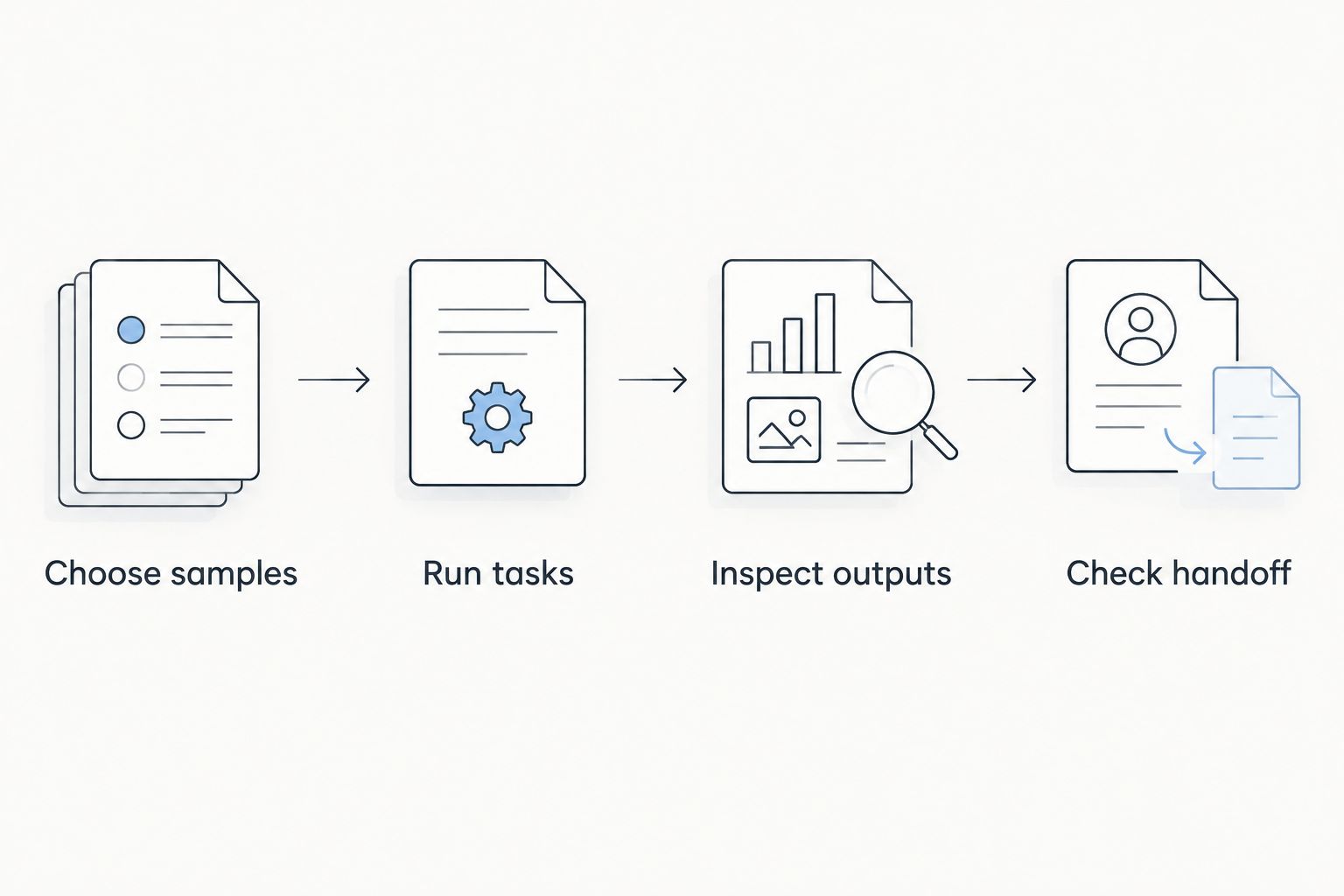
Use the same documents in every candidate. Comparing different files hides the very differences you need to see.
- Choose samples: Prepare 5 sample files: a text PDF, a scanned PDF, a form, a Word document, and a spreadsheet. Remove sensitive information before testing online processing.
- Run tasks: Complete 1 end-to-end workflow that represents your actual job. Include signing only when signing is part of that job.
- Inspect outputs: Examine 2 outputs where relevant: the final PDF and the editable export. Check line breaks, tables, characters, and page boundaries.
- Check handoff: Open the finished file in the application your recipient uses. Confirm that the document remains readable and usable there.
These sample counts are a practical test plan, not product limits. Replace any irrelevant sample with a document type you routinely handle.
Record failures by task rather than by impression. A shifted table, an unreadable scan, or an unusable export is a concrete reason to reject a workflow; a less familiar interface is a separate issue.
For sensitive documents, check the provider's current handling terms and your organization's requirements before uploading. Neither a browser workflow nor a desktop workflow establishes suitability for confidential files on its own.
When staying with pdfFiller is the right call
Keep pdfFiller when online PDF editing, form filling, and signing already match your work. A different product category is not automatically an improvement.
Before switching, repeat your existing workflow with the same sample documents used for alternatives. Compare the finished files and recipient experience. If the replacement does not solve a specific problem, changing tools introduces another process to learn without a clear operational reason.
A sensible 2026 decision also separates replacement from supplementation. You can choose a dedicated conversion or desktop-editing tool for an occasional task without treating it as a substitute for your entire form workflow.
FAQ
What's the best pdfFiller alternative for online document processing?
Zendocs is the best fit in this comparison for browser-based conversion, editing, signing, and management across PDF and other document formats. Validate your representative files before choosing it for a recurring workflow.
Is Adobe Acrobat better than pdfFiller?
Adobe Acrobat is the better fit when your main requirement is installed desktop PDF editing. pdfFiller remains relevant when online PDF forms, editing, and signing are the core job.
Which pdfFiller alternative works offline on Windows?
PDF24 Creator is the installed Windows option in this comparison. Distinguish the Creator application from PDF24's browser-based tools when evaluating local processing.
Should I choose Docusign instead of pdfFiller?
Choose Docusign when agreement signature collection is your main requirement. Keep a separate editor if you also need to rewrite document content or convert files before sending.
What's a good alternative for a single PDF conversion?
Smallpdf fits individual browser-based PDF tasks such as conversion. Inspect the resulting document before treating it as an accurate editable copy of the original.
How should I compare pdfFiller alternatives in 2026?
Compare alternatives using the same representative documents and the same end-to-end task. Inspect both the finished file and the recipient handoff instead of judging only the editing screen.
Do I need to replace pdfFiller to use another PDF tool?
No, a separate tool can handle a task without replacing your existing PDF form workflow. Replace pdfFiller only when the alternative addresses the main job you need done.
One last thing
Judge the file that leaves the tool, not the screen where you edited it. A workflow succeeds when the recipient can use the final document as intended. Keep an untouched source copy so you can distinguish problems in the original from changes introduced during processing.


