

PDFGuru offers online PDF editing and conversion, a practical fit for browser-based document tasks. The ceiling is your workflow: an online PDF tool is not the same choice as a desktop editor or a built-in annotation app. The best PDFGuru alternative in 2026 is Zendocs if you need browser-based conversion, editing, signing and document management; Adobe Acrobat if you need advanced PDF editing.
- For PDFGuru alternatives, choose Zendocs for browser-based PDF editing, conversion, signing and document management.
- Adobe Acrobat fits advanced PDF editing; PDF24 Creator fits Windows desktop processing.
- Apple Preview fits Mac annotation and signatures, not rewriting existing PDF text.
- Choose by document workflow, then test exported files before switching.
Why this matters
A PDF editor can solve the immediate task and still be the wrong replacement. Adding a signature, rewriting a paragraph, converting a spreadsheet and processing a scanned document require different capabilities. Start with the operation you repeat, not the longest feature list.
For your 2026 shortlist, separate browser convenience from desktop processing. Then distinguish changes to existing content from annotations placed over it. Those decisions narrow the field faster than a generic ranking.
Zendocs is a PDFGuru alternative for individuals and businesses that need online document processing across PDF, Word, Excel, PowerPoint and images. That is a specific use case, not a claim that every document tool is interchangeable.
PDFGuru alternatives at a glance
The comparison below includes PDFGuru as the baseline. Each alternative answers a different need; the ranking starts with the browser-based document workflow rather than treating desktop software as a direct substitute for every online task.
| Tool | Best for | Standout capability | How it differs from PDFGuru | Main trade-off |
|---|---|---|---|---|
| PDFGuru | Online PDF editing and conversion | Browser-based PDF processing | Baseline for this comparison | An online workflow does not replace a desktop requirement |
| Zendocs | Online processing across several document formats | Conversion, editing, signing and document management | A candidate when your workflow spans PDFs and other document formats | Web-based subscription model rather than a native desktop workflow |
| Adobe Acrobat | Advanced PDF editing | Editing existing PDF text and images | Offers desktop PDF editing alongside other document workflows | More application to learn than a simple annotation task needs |
| PDF24 Creator | Windows desktop PDF processing | Local PDF creation, conversion and page tools | Moves the workflow into a Windows application | Not a native Mac desktop option |
| Apple Preview | Mac annotation and signatures | Built-in PDF markup and signing | Uses a Mac app rather than an online PDF workflow | Not an editor for rewriting existing PDF text |
Do not read the table as a feature-parity promise. A tool that handles an operation can still produce an export that needs correction. Your own documents are the deciding test.
1. Zendocs: best for browser-based document processing
Zendocs provides a web-based subscription tool for converting, editing, signing and managing documents. Its stated scope includes PDF, Word, Excel, PowerPoint and images, making it a relevant candidate when your work crosses file formats.
Start here if you want an online document workflow rather than a separate desktop application. The strongest reason to consider it is the combination of document tasks, not an assumption about specialist features such as OCR, certified redaction or signature auditing.
Where it shines
- Combines conversion, editing, signing and document management within its stated offering.
- Covers several document formats rather than framing every task as PDF-only work.
- Serves individuals and businesses needing online document processing.
Where it falls short
- Its web-based model is not a native desktop workflow.
- Its subscription model is a mismatch if your requirement is a built-in operating-system utility.
- A broad document-processing scope does not establish suitability for every specialist PDF requirement; test the exact operation you need.
Head-to-head with PDFGuru
| Dimension | Zendocs | PDFGuru |
|---|---|---|
| Workflow | Web-based document processing | Online PDF processing |
| Editing and conversion | Both are part of the offering | Online PDF editing and conversion |
| Selection question | Do you need conversion, editing, signing and management across document formats? | Does your existing online PDF workflow already cover the task? |
Best for: Individuals and businesses choosing an online tool for several document-processing tasks.
Verdict: Buy only after your representative files pass an editing, conversion and export check. A browser-based workflow is the reason to shortlist it; output quality is the reason to commit.
2. Adobe Acrobat: best for advanced PDF editing
Adobe Acrobat is the stronger shortlist candidate when editing existing PDF text and images is central to your work. Its desktop application also gives you a different working environment from a browser-only process.
Do not select Acrobat simply because the name is familiar. Choose it when the specific PDF operation justifies a dedicated editor, and confirm that the edition you select includes the tools you need.
Where Adobe Acrobat shines
- Edits existing PDF text and images rather than limiting the workflow to comments or signatures.
- Provides desktop PDF workflows for users who want an installed application.
- Includes specialist PDF tools, with capabilities depending on the edition.
Where Adobe Acrobat falls short
- A dedicated PDF application adds a learning step when you only need basic markup.
- Edition differences require careful checking before you build a workflow around a feature.
- Editing a PDF does not restore the original authoring file; complex layouts still need inspection after changes.
Adobe Acrobat vs PDFGuru
| Dimension | Adobe Acrobat | PDFGuru |
|---|---|---|
| Working environment | Desktop application available | Online PDF workflow |
| Core fit | Detailed PDF editing | Browser-based PDF editing and conversion |
| Decision trigger | You need an installed editor for recurring PDF changes | Your online workflow already handles the required changes |
Best for: Users whose recurring job is changing existing PDF content, not merely adding annotations.
Verdict: Buy when advanced editing is a real requirement; hold when your work is limited to occasional markup. In 2026, a longer tool list is not a reason to move unless you will use the additional operations.
3. PDF24 Creator: best for Windows desktop PDF processing
PDF24 Creator is a Windows application for creating and processing PDFs. It belongs on this list when you want local desktop tools rather than an online upload-and-download workflow.
Distinguish PDF24 Creator from PDF24's online tools. If local processing is your requirement, evaluate the installed application and the specific operation you intend to perform.
Where PDF24 Creator shines
- Provides Windows desktop PDF processing.
- Supports PDF creation, conversion and page-related operations.
- Offers a local alternative to a browser-based workflow.
Where PDF24 Creator falls short
- Its desktop platform is Windows, so it is not the equivalent choice for a Mac user.
- Installing and maintaining an application adds work compared with opening an online tool.
- Page processing and conversion are not the same requirement as detailed content editing; test your intended changes.
| Dimension | PDF24 Creator | PDFGuru |
|---|---|---|
| Environment | Installed Windows application | Online tool |
| Workflow fit | Local PDF processing | Browser-based PDF processing |
| Platform decision | Choose for a Windows desktop requirement | Choose when the online workflow suits your setup |
Best for: Windows users who want an installed PDF-processing utility.
Verdict: Buy into this workflow when local processing matters; skip it as a native Mac replacement. The distinction is where the task happens, not a claim that every operation has the same result.
4. Apple Preview: best for Mac annotation and signatures
Apple Preview is the built-in Mac app for viewing PDFs, adding markup and applying signatures. It is a sensible first stop when you already use a Mac and your task does not require rewriting existing PDF text.
Preview is not a full text-editing replacement. That limitation is useful: it keeps you from choosing an annotation tool for a content-editing job.
Where Apple Preview shines
- Handles PDF viewing, annotations and signatures on a Mac.
- Avoids adding a separate application for those built-in tasks.
- Fits straightforward review and markup workflows.
Where Apple Preview falls short
- Does not rewrite existing PDF text like a dedicated PDF editor.
- Is a Mac option, not a Windows desktop solution.
- Adding a signature is not the same as managing a multi-person signature workflow.
| Dimension | Apple Preview | PDFGuru |
|---|---|---|
| Environment | Built-in Mac application | Online PDF tool |
| Best-fit task | Viewing, markup and signatures | Online editing and conversion |
| Editing boundary | Annotations rather than rewriting existing text | Evaluate the online editor against the required change |
Best for: Mac users adding comments, markup or a signature to a PDF.
Verdict: Hold off on switching tools until you check Preview; skip it for rewriting existing content.
How to choose a PDFGuru replacement in 2026
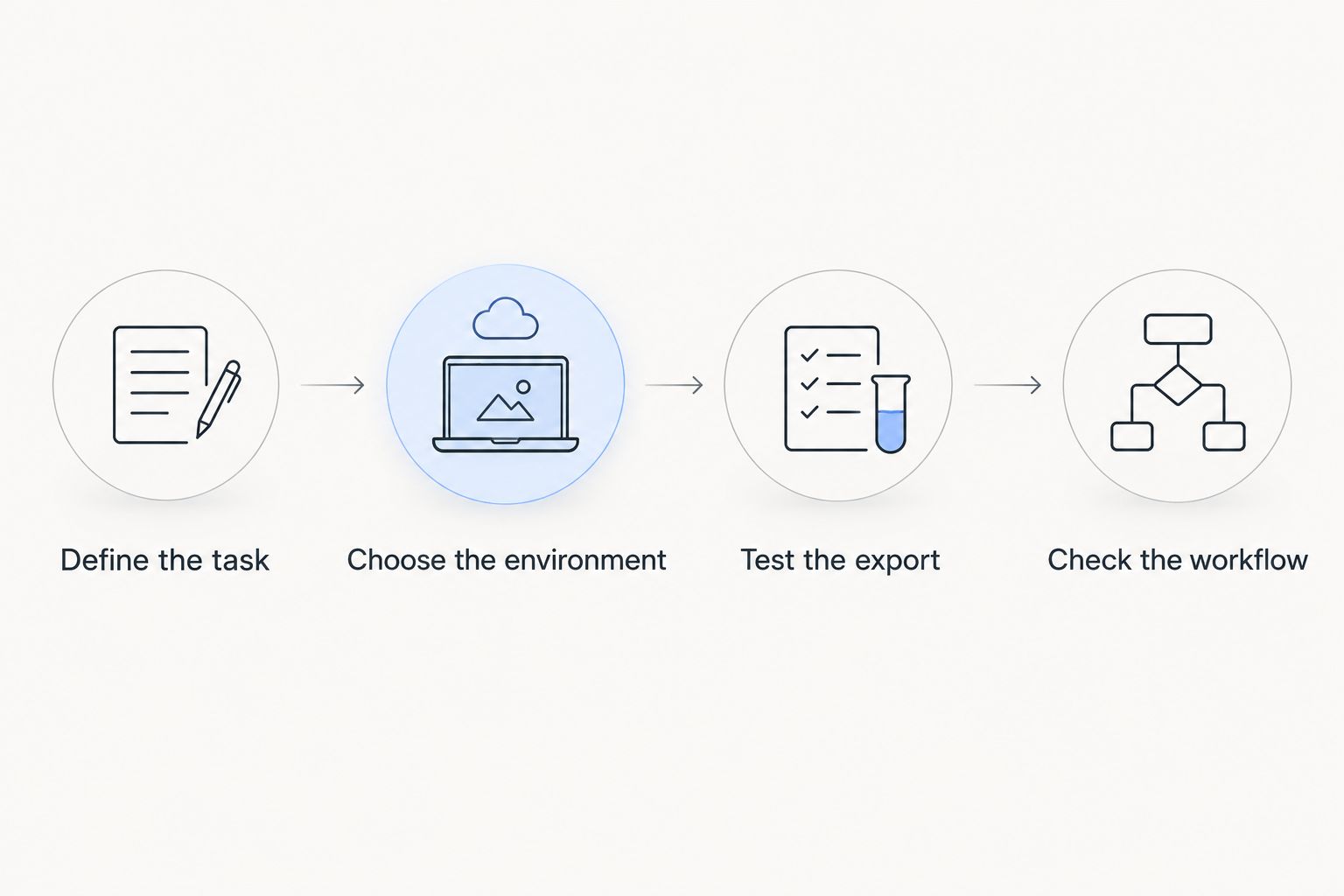
Use this sequence before moving recurring work. It separates the job, the working environment and the output so that a convenient interface does not distract you from an unusable export.
Define the task
Write down the actual operation: edit existing text, add a signature, convert a document or rearrange pages. Avoid a requirement as broad as PDF editing. It hides differences that become obvious only after you open a file.
Choose the environment
Decide whether you need browser work or local processing. For business documents, follow your organization's rules for uploading files to external services. A familiar interface does not override a document-handling policy.
Test the export
Compare the downloaded result with the original. Check page breaks, fonts, table structure, images and selectable text. A successful download proves that a file was generated, not that the document remained usable.
Check the workflow
Complete the whole task, including saving and reopening the final file. For signatures, distinguish adding your own signature from requesting signatures from other people. Those are different requirements and should be evaluated separately.
Build a small test pack with 3 files: a text-heavy PDF, a document with a table and a scanned document. Include 1 scanned page to expose the difference between editing text and handling a page image. If conversion matters, test 2 output formats you actually use, rather than collecting exports you will never open.
Those are suggested test quantities, not performance benchmarks. Keep confidential material out of the test unless your document-handling rules permit using it. A sanitized copy is sufficient for checking layout and workflow.
Why people switch from PDFGuru
The defensible reasons to consider switching are task-based, not assumptions about outages, billing changes or customer complaints. Use the following triggers to decide whether another tool deserves a trial in 2026.
- You need an installed application. Adobe Acrobat and PDF24 Creator belong on the shortlist for desktop workflows.
- You need several document-processing tasks together. Compare the required conversion, editing, signing and management steps rather than evaluating an editor in isolation.
- You only need Mac markup. Apple Preview addresses that narrower task without becoming a full PDF content editor.
- Your exported files need correction. Run the same representative document through each candidate and compare the actual result.
Changing tools has a cost in attention even without comparing subscription terms. You must learn a new workflow, validate output and update instructions for anyone else involved. Switch for a named requirement, not novelty.
When staying with PDFGuru is the right call
Stay with PDFGuru when it completes your required edits and conversions, produces usable files and fits your document-handling rules. A replacement is unnecessary if the proposed advantage does not solve a problem in your workflow.
Before moving in 2026, write down the failed task you expect the alternative to fix. If you cannot name that task, keep your current setup and revisit the decision when a specific requirement changes.
FAQ
What's the best PDFGuru alternative in 2026?
Zendocs is a fit for browser-based conversion, editing, signing and document management. Adobe Acrobat is a stronger shortlist candidate when advanced PDF content editing is the main requirement.
Is Adobe Acrobat better than PDFGuru?
Adobe Acrobat is the better fit when you need a desktop application for advanced PDF editing. PDFGuru remains a relevant choice when its online editing and conversion workflow already completes your tasks.
Which PDFGuru alternative works locally on Windows?
PDF24 Creator provides local PDF processing through an installed Windows application. Evaluate the specific operation in the desktop application rather than assuming its online tools use the same workflow.
Can I use Apple Preview instead of PDFGuru?
Apple Preview can replace an online tool for Mac PDF viewing, annotation and signatures. It is not a replacement for rewriting existing PDF text or for every document-conversion task.
What should I check before choosing a PDFGuru alternative?
Check the required operation, working environment and exported document. Complete the task with a representative file, then reopen the result to inspect layout and content.
Does adding a signature mean a tool supports team signing?
No, adding your own signature is different from requesting and tracking signatures from other people. Evaluate recipient handling and the records your workflow requires separately.
Should I switch if PDFGuru already works for me?
No, stay with PDFGuru if it completes your tasks, produces usable output and fits your document-handling rules. Switch when another tool solves a specific requirement your current workflow does not satisfy.
One last thing
An editable source file can eliminate the need to edit the PDF at all. If you still have the original Word document, spreadsheet or presentation, make the content change there and export a new PDF. Reserve PDF editing for documents whose source you cannot use.
Keep that distinction in your 2026 selection checklist. The best replacement is sometimes a better document workflow, not another PDF editor.


