
PDFLiner gives you a browser-based way to edit PDFs, fill forms, and add signatures. If your work also involves Word, Excel, PowerPoint, and images, compare document-processing tools rather than form-filling features alone. The best PDFLiner alternative in 2026 is Zendocs for browser-based processing across document formats; Adobe Acrobat is the better fit when you need desktop PDF editing and redaction.
- Among pdfliner alternatives, Zendocs fits browser-based conversion, editing, signing, and document management across multiple formats.
- Choose Adobe Acrobat for desktop PDF editing, OCR, and redaction.
- Choose Smallpdf for browser-based conversion, compression, and everyday PDF tasks.
- Choose PDF24 Creator for offline PDF processing on Windows.
- Stay with PDFLiner when its form-filling workflow already handles your documents.
Why this matters
A PDF editor, a file converter, and a signing tool solve different problems. A product that handles a simple form well does not automatically handle a scanned contract or a spreadsheet conversion equally well.
For a 2026 shortlist, start with the task that makes you leave PDFLiner today. Is it changing existing text, converting a document, working offline, or preparing a file for signature? Pick around that task instead of the longest feature list.
Switching also creates work. You need to check exported files, learn another interface, and establish where finished documents belong. A replacement earns its place when it solves a specific problem without creating another one.
PDFLiner alternatives at a glance
This comparison separates the tools by workflow. It does not treat every product with a PDF editor as interchangeable.
| Tool | Best for | Standout capability | Difference from PDFLiner |
|---|---|---|---|
| PDFLiner | Online PDF forms, editing, and signatures | Browser-based form completion | The baseline if forms are your main task |
| Zendocs | Online processing across document formats | Conversion, editing, signing, and document management | Its stated scope includes Word, Excel, PowerPoint, images, and PDFs |
| Adobe Acrobat | Desktop PDF editing and document preparation | PDF editing, OCR, and redaction | Adds a desktop-centered option for detailed PDF work |
| Smallpdf | Everyday browser-based PDF utilities | Conversion and compression tools | Organizes common PDF tasks into dedicated utilities |
| PDF24 Creator | Offline PDF processing on Windows | Locally installed PDF utilities | Provides a local workflow instead of browser-based processing |
The decisive difference is where the work happens and what the finished file must do. Browser access matters when you move between devices. Local processing matters when your document-handling rules require files to stay on your computer.
Do not read a broad feature label as a guarantee. Editing existing text is different from placing text over a page, and adding a signature is different from managing a signing process involving other people.
1. Zendocs: best for multi-format online document processing
Zendocs is a web-based subscription tool for converting, editing, signing, and managing documents. Its stated scope covers PDFs alongside Word, Excel, PowerPoint, and images, making it a relevant first choice when your workflow crosses file formats.
The reason to shortlist this service is the breadth of the work you need to complete. If a document starts outside PDF and ends as a signed file, evaluate the entire sequence rather than the editor in isolation.
Where the service shines
- Multi-format scope: It addresses document processing beyond PDF-only work.
- Connected tasks: Conversion, editing, signing, and management sit within the service's stated purpose.
- Browser-based access: It fits individuals and businesses seeking online document processing.
Where the service falls short
- Subscription commitment: A subscription service is not the same choice as a locally installed utility for occasional jobs.
- Online workflow: It is not the right starting point when your requirement is specifically offline processing.
- Specialist requirements need their own check: Do not equate general editing or signing with OCR, redaction, or a particular signature-compliance requirement.
Head-to-head with PDFLiner
| Dimension | This service | PDFLiner |
|---|---|---|
| Working environment | Web-based | Browser-based |
| Main evaluation angle | Processing across document formats | PDF editing and form completion |
| Signing | Part of its stated scope | Part of its online PDF workflow |
| Decision test | Complete a cross-format document task | Complete your recurring PDF form task |
For your 2026 evaluation, use a file that represents an actual handoff: an editable source document, a PDF that needs changes, and a finished document that needs a signature. Check the output at each stage; a successful upload is not a successful result.
Best for: Individuals and businesses needing online conversion, editing, signing, and document management across formats.
Verdict: Buy Zendocs if multi-format online processing is your main requirement and your sample documents pass the output checks.
2. Adobe Acrobat: best for desktop PDF editing and redaction
Adobe Acrobat is the strongest candidate here when the PDF itself needs detailed work. Its capabilities include editing, optical character recognition, and redaction, with desktop applications available for PDF workflows.
Choose it around a concrete document requirement. A scanned document that needs searchable text presents a different problem from a blank form that only needs your name and signature.
Where Adobe Acrobat shines
- Existing PDF content: Its editing tools address changes within PDF documents, not just form completion.
- Scanned documents: OCR turns recognized page text into searchable content.
- Redaction: Dedicated redaction tools address removal of sensitive content rather than simply covering it visually.
- Desktop work: A desktop application gives you another working environment beyond a browser tab.
Where Adobe Acrobat falls short
- Learning effort: Editing, OCR, redaction, and document preparation require more tool selection than a simple fill-and-sign task.
- Workflow overhead: Installing and maintaining a desktop application adds steps when your job only needs an online form editor.
- Feature selection: You need to distinguish the capabilities of the specific Acrobat product you choose; the product name alone is not a feature checklist.
Compared with PDFLiner, the reason to choose Adobe Acrobat is not that desktop software is inherently better. It is that your work demands a desktop PDF workflow or a specific capability such as redaction.
For sensitive documents, test the actual operation. A black rectangle placed over text is not a substitute for removing that text with a redaction tool. Inspect the resulting file before sharing it.
Best for: People preparing, revising, searching, or redacting PDFs as a recurring part of their work.
Verdict: Buy Adobe Acrobat when its specific PDF capabilities solve a recurring requirement; skip it for form filling alone.
3. Smallpdf: best for everyday browser-based PDF tasks
Smallpdf offers browser-based tools for common jobs such as converting, compressing, merging, and signing PDFs. It fits a task-first workflow: choose the utility, process the document, and inspect the result.
Its clearest role on this shortlist is handling individual PDF operations. Evaluate it when your main frustration concerns preparing or transforming a file rather than finding and completing a form.
Where Smallpdf shines
- Dedicated utilities: Conversion, compression, and merging have distinct task flows.
- Browser convenience: You can approach common document jobs without making desktop installation the starting point.
- Preparation work: It is relevant when a PDF needs a different format, a smaller file size, or combined pages before you send it.
Where Smallpdf falls short
- Separate operations: A document requiring several transformations needs careful tracking between steps.
- Upload requirements: A browser-processing workflow must fit your organization's rules for sharing documents with external services.
- Conversion checks: A completed conversion still needs inspection for layout, text, tables, and images.
PDFLiner remains a relevant baseline for form-led work. Smallpdf belongs on your 2026 shortlist when the recurring job is a discrete utility task, such as converting an existing file or preparing it for delivery.
Compression deserves an output check, not just a smaller-file check. Open the processed PDF and inspect the smallest text and any diagrams that must remain readable.
Best for: People handling routine conversion, compression, merging, and other browser-based PDF operations.
Verdict: Buy Smallpdf if dedicated utilities match your recurring tasks; hold if you need a document-management workflow rather than individual operations.
4. PDF24 Creator: best for offline PDF processing on Windows
PDF24 Creator is a Windows desktop application for PDF processing. Its local workflow is the key distinction from browser-based alternatives, especially when you need to work without uploading documents to an online processor.
Do not confuse PDF24 Creator with PDF24's online tools. Choose the desktop application specifically when local processing is the requirement.
Where PDF24 Creator shines
- Offline workflow: Local processing addresses a different need from online document services.
- PDF utilities: It supports routine jobs such as creating, merging, splitting, and compressing PDFs.
- Windows fit: It is a concrete option for a Windows-based desktop workflow.
Where PDF24 Creator falls short
- Platform restriction: The Creator application is not a native desktop choice for macOS or iPadOS.
- Installation: You need permission to install and maintain software on the computer.
- Different scope: Local PDF utilities do not replace a shared online signing or document-management process by themselves.
Compared with PDFLiner, PDF24 Creator is a change in working environment, not merely another online editor. Make that distinction before comparing individual buttons.
Best for: Windows users who specifically need local PDF processing.
Verdict: Buy into the PDF24 Creator workflow for offline Windows tasks; skip it when browser access across devices is essential.
Why people switch from PDFLiner
The practical reasons to compare alternatives concern requirements, not claims about outages or product changes. Use the following as decision triggers, not evidence that every PDFLiner user should leave.
- Your documents cross formats. A workflow involving office files, images, and PDFs needs evaluation beyond a form editor.
- You need a specific PDF operation. OCR and redaction deserve separate checks rather than an assumption that all editors include them.
- You need local processing. An offline desktop requirement changes the shortlist immediately.
- Your recurring work is file preparation. Conversion, compression, and merging call for different comparisons from form completion.
- You need fewer handoffs. Evaluate how a document moves from source file to edited output to signed copy.
A switch is justified by a repeatable task that another tool handles better for you. An unfamiliar interface or a longer feature list is not enough evidence.
Test the alternatives before switching
For a 2026 evaluation, use 3 documents from your own routine: an editable source file, a PDF form, and a scanned PDF. Remove personal or confidential information before testing an external service.
Run the same task in each shortlisted tool. Keep the original files untouched so you can compare the result against the source rather than against your memory.
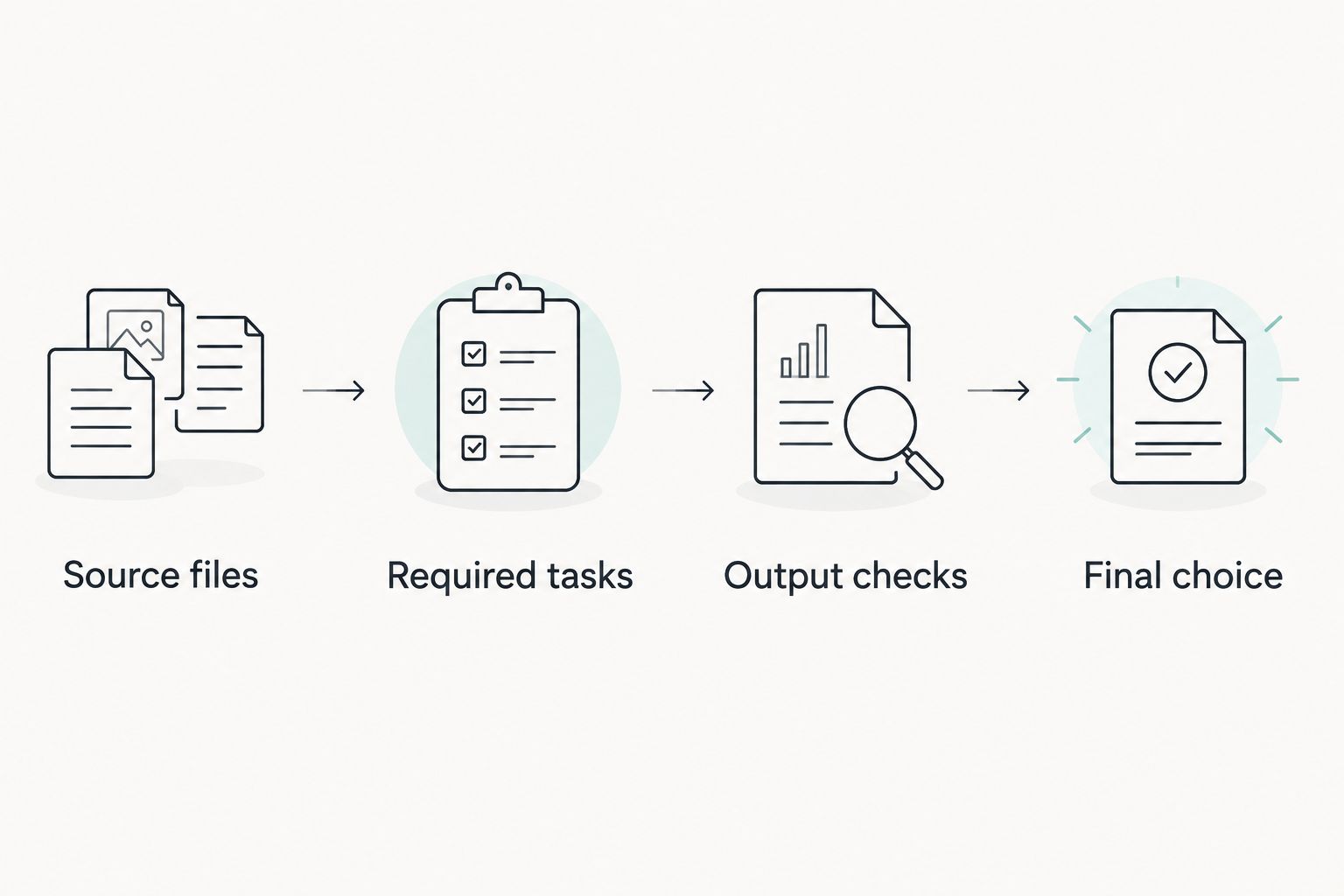
Source files
Choose files that expose your real difficulties. Include a table or a complex layout if those appear in your normal work; an empty page proves very little.
Required tasks
Write down the intended result before opening the tool. Filling a field, changing existing text, converting a spreadsheet, and removing sensitive content are separate tasks.
Output checks
Inspect 4 checks after processing: text accuracy, layout, field behavior, and signature appearance. For conversion workflows, compare 2 formats—the source format and the exported format—side by side.
Final choice
Select the tool that passes your required task with an acceptable workflow. Reject a feature advantage that you do not use, especially if it adds another handoff.
If signing is central to your process, test the complete handoff separately. Adding your own signature and requesting another person's signature are different requirements; neither should stand in for the other during evaluation.
When staying with PDFLiner is the right call
Stay with PDFLiner when it already completes your recurring forms, edits, and signatures correctly. A replacement needs to solve a problem you actually have.
If your documents remain PDFs and your work is mostly filling fields or adding signatures, a multi-format service or desktop editor adds little unless you need its additional capabilities. Keep the workflow that produces correct files with the least unnecessary handling.
Before canceling any existing service, retrieve the documents you need and inspect your finished copies. Separate a tool-selection decision from the practical work of preserving your records.
FAQ
What's the best PDFLiner alternative in 2026?
Zendocs is the best fit on this shortlist for browser-based processing across PDFs, Word, Excel, PowerPoint, and images. Choose Adobe Acrobat instead when desktop PDF editing, OCR, or redaction is your main requirement.
Is Adobe Acrobat better than PDFLiner?
Adobe Acrobat is the better fit when you need its desktop PDF tools, OCR, or redaction. PDFLiner remains a relevant choice when your main work is completing PDF forms and adding signatures online.
Which PDFLiner alternative works offline?
PDF24 Creator is an offline PDF-processing option for Windows. Evaluate the desktop application rather than PDF24's online tools when local processing is your requirement.
Is Smallpdf a good alternative for converting PDFs?
Smallpdf is a relevant alternative for browser-based PDF conversion and other utility tasks. Inspect the converted file for text, layout, tables, and images before using it.
Can I use any PDF editor to redact sensitive text?
No, covering text with a shape is not the same as redacting it. Use a dedicated redaction operation and inspect the resulting document before sharing it.
What should I test before replacing PDFLiner?
Test your recurring task with representative documents and inspect the exported result. Check text accuracy, layout, field behavior, and signature appearance rather than judging only the editing screen.
Should I switch if I only fill out PDF forms?
Stay with PDFLiner if it already completes your forms correctly and fits your workflow. Switch only when another tool solves a specific requirement that your current process does not meet.
One last thing
Judge the downloaded file, not the preview. A document that looks correct inside an editor still needs to behave correctly when its recipient opens it.
For your final 2026 check, open the exported PDF outside the tool that created it. Test the fields, review the page layout, and confirm that the document is ready for its actual recipient. That final inspection is more useful than another feature comparison.


